Using a password manager is an easy way to stay safer online while keeping all your logins in one place. With a single master password, you can create strong, unique passwords for every account, get alerts about data breaches, and keep your logins synced between your phone and computer. Here are ten clear reasons to start using one now.
Use a Unique Password for Every Site
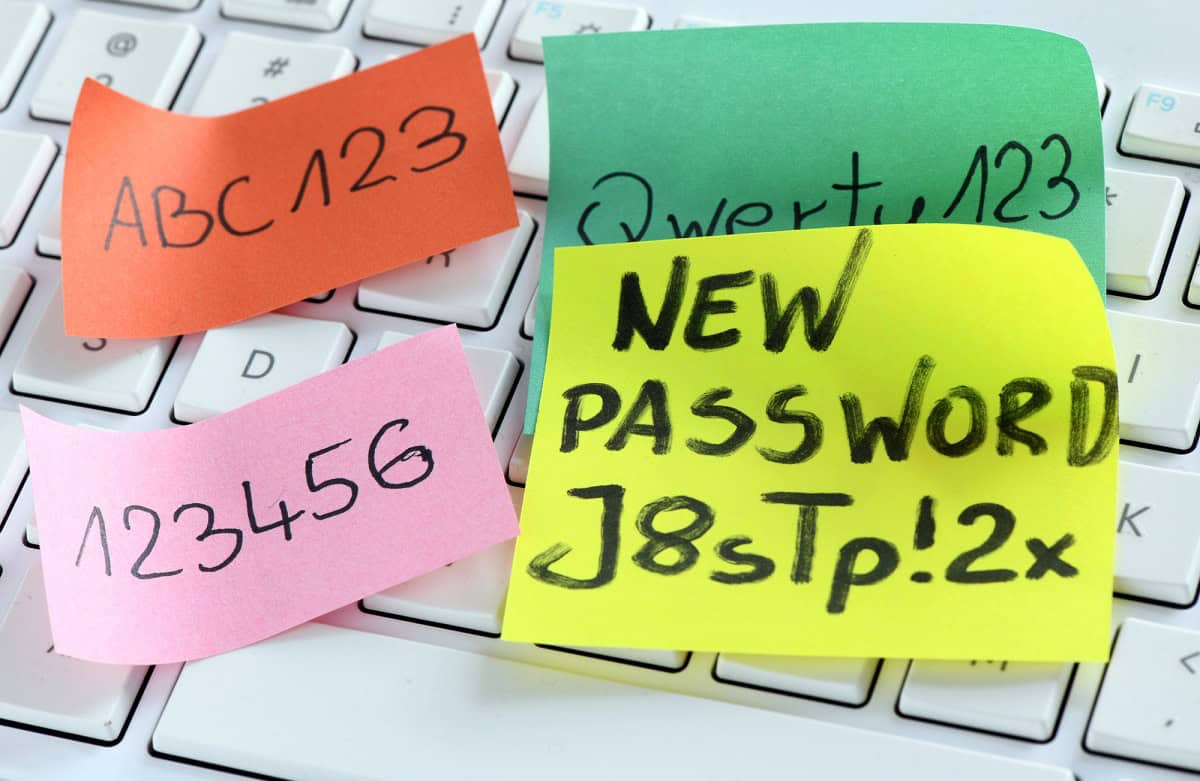
Using a password manager gives you a truly unique password on every site, without you needing to remember any of them. Instead of reusing the same 2 or 3 passwords for banking, social media, and shopping, the app stores hundreds of different logins behind one strong master password. Many managers generate long, random strings like “C4u!9k@2Lm#7” with options for 20+ characters, symbols, and numbers, which are far harder to guess or brute-force than anything most people can come up with on their own. That way, if one site gets hacked and leaks your password, attackers cannot use it to walk straight into your email, PayPal account, or health portal.
Generate Strong Passwords Automatically

Password managers create long, random passwords for you that are almost impossible to guess or crack. Instead of using “Summer2026!” on every site, the kind of pattern that sits on the list of passwords hackers guess first, you get 20+ character strings with mixed letters, numbers, and symbols that are generated on the spot. Many apps let you customize rules, like requiring a minimum length or avoiding confusing characters such as 0 and O. Some will even rate password strength in real time, so you can see how much harder your new password is to break compared to what you used before.These tools also make sure you actually use those stronger passwords everywhere, without needing to remember them. When you sign up for a new account, the manager can pop up, generate a unique password, and save it automatically. That new login is then synced to your phone and laptop, so it can autofill next time you visit. You get end-to-end AES-256 encryption on the back end and much better passwords on the front end, without extra work.
Get Alerts for Breaches and Reused Passwords
Using a password manager gives you early warnings when your passwords are exposed in data breaches or used in more than one place. Most apps constantly check your saved logins against known breach databases and will flag any account that shows up in a leak, so you know which passwords to change right away. They also scan your vault for reused or weak passwords and show a clear “security score” or color-coded warnings, so you can see at a glance where you are most at risk. Instead of guessing which account might be in trouble, you get specific alerts and can fix the exact passwords that need attention.
Sign In Faster With Autofill
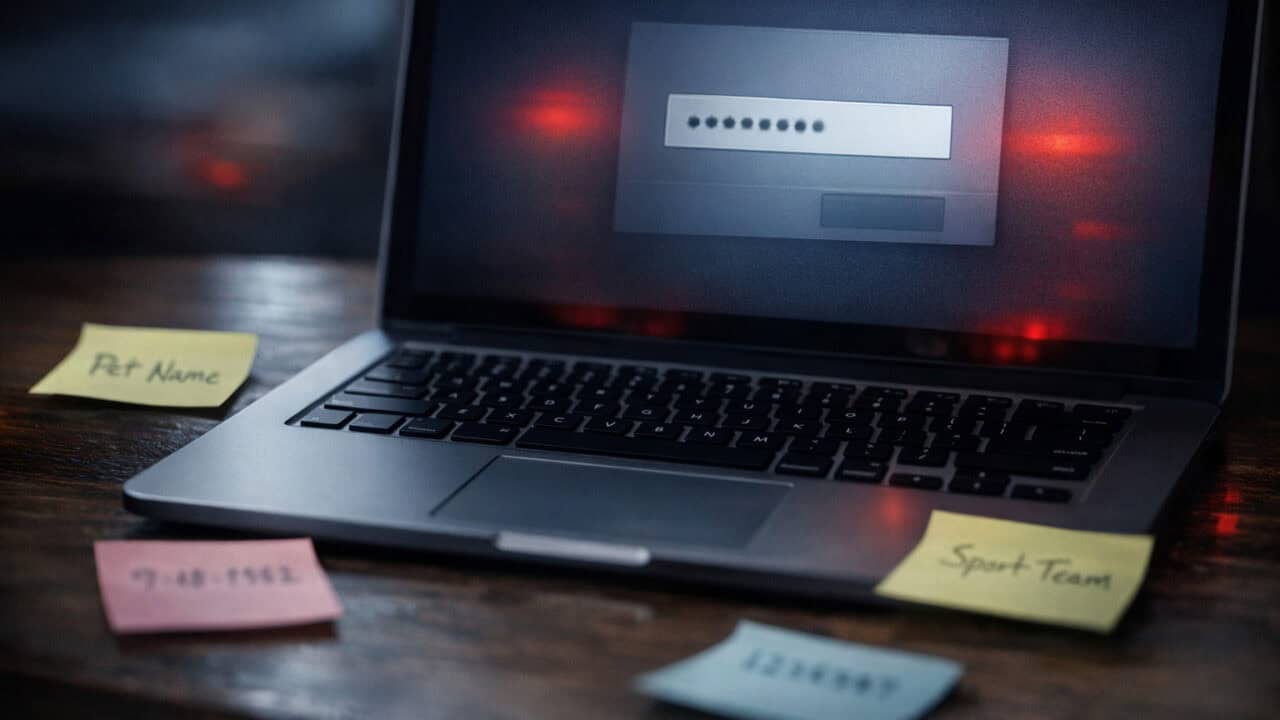
Autofill in a password manager lets you sign in to apps and websites in a couple of taps instead of typing long logins every time. Once you save a login, the app can auto-fill your email or username and your password on sign-in pages, just like browser autofill but locked behind one master password, a phone PIN, or Face ID. Most password managers also fill saved payment cards and addresses at checkout, so you can finish online shopping faster without pulling out your wallet.Built-in managers from Google and Apple sync too, but mostly inside their own browser or ecosystem (Apple’s reaches Chrome on a Windows PC only after you install iCloud for Windows and its browser extension); a dedicated password manager follows you from Safari on an iPhone to Chrome on a Windows PC with one app and no re-saving. Many apps let you control where autofill works, such as only in certain browsers or blocking it from untrusted apps, which cuts down on typing while keeping your logins under your control.
Keep Your Passwords Synced Across Devices
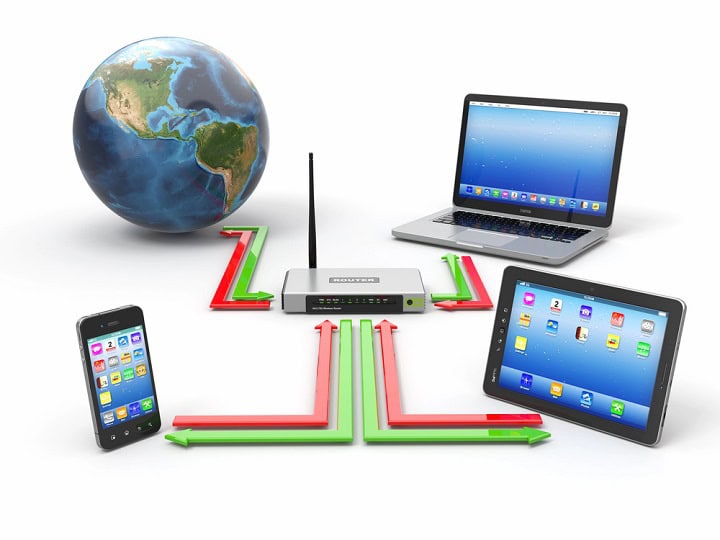
A password manager keeps your passwords synced across your phone, laptop, tablet, and work computer so you always have the right login ready to go. When you save a new password on your Windows PC or Mac, it appears in the app on your iPhone or Android without you lifting a finger, through encrypted cloud sync. That means you can change a banking password on your desktop, then sign in with Face ID on your phone the next minute using the updated login.Sync also solves the “I only know it on my home computer” problem that stops people from using strong, unique passwords everywhere. Instead of reusing one weak password you can remember, the manager stores hundreds of long, random passwords and keeps them consistent on every device. If you lose or replace a device, you just sign back into the manager with your master password and, ideally, a second factor like an authenticator app, and your whole vault of logins comes back.

Using a password manager lets you share logins with family in a way that is much safer than texting or emailing passwords. You can create a shared vault for things like your Netflix, Disney+, Wi‑Fi, or family banking logins, and each person gets their own login to the manager instead of seeing the raw password in a message thread. Many managers let you share “view only” access, so your teenager can sign in to the cable account to stream TV but can’t change the password or see your secure notes. If you ever need to stop sharing, you can remove that person from the shared vault in a few clicks, without having to change every password you’ve ever given them.
Store Cards, Notes, and IDs in One Place

A password manager stores your credit cards, secure notes, and IDs in one locked vault so you are not hunting through drawers, emails, and photos. Most apps let you add card numbers, expiration dates, and CVV codes, then autofill checkout forms on shopping sites so you do not have to pull out your wallet every time. You can also save things like Wi‑Fi passwords, bank routing numbers, and software license keys, and keep them encrypted with the same master password that protects your logins.Many password managers also store digital copies of driver’s licenses, passports, and insurance cards so you have them handy when you book flights or visit a new doctor. Some let you attach photos or PDFs, tag them, and lock especially sensitive entries behind an extra prompt like a fingerprint or PIN. This turns your password manager into a single place for almost every sensitive detail you used to keep on sticky notes, in plain-text files, or scattered across apps.
Avoid Fake Sites With Autofill
A password manager helps you spot fake sites because it will only autofill your login on the exact domain where you saved it. When you save your Amazon password, for example, the manager ties it to “amazon.com” and will not offer to fill it on “arnazon.com” or a lookalike domain trying to trick you. That small detail is a big warning sign: if your usual autofill prompt is missing, you know to double-check the address bar before typing anything.Most password managers also show the website icon and full URL in the autofill popup, so you can visually confirm you are on the right page. Some apps go further and store your login as “website + username,” then gray it out or hide it entirely when the domain does not match. This makes phishing harder, because attackers cannot rely on you blindly typing your email and password into any login box that appears.
Support Passkeys and Multi-Factor Sign-Ins

Password managers help you use safer logins by supporting both passkeys and multi-factor sign-ins in one place. Many password managers can store passkeys and unlock them with Face ID, Touch ID, or Windows Hello, so you can log in with your fingerprint or face instead of typing a password; if you prefer a hardware security key like a YubiKey, the passkey lives on the key itself rather than in the manager. They can also take over the job of a separate authenticator app, generating the same 6-digit codes and autofilling them so you do not have to copy and paste.This setup makes phishing a lot harder, because a passkey will not work on the wrong website and your codes stay inside an encrypted vault. When everything is in one manager, you are less tempted to turn off two-factor just because it feels annoying or hard to keep track of. You get stronger security with fewer steps, and you do not have to juggle SMS codes, separate authenticator apps, and handwritten backup codes.
Add Emergency and Account Recovery Access
Password managers let you set up emergency and account recovery access so a trusted person can get in if you can’t. Most apps let you name a contact, like a spouse or adult child, and choose whether they can only view your vault or fully take it over; if you want them to see only certain logins, such as bank or medical portals, put those in a shared vault instead. You usually control this with settings like a waiting period, where your vault only unlocks for them after a delay, giving you time to cancel if the request wasn’t really from your contact.Recovery tools also save you from being locked out of your own account when you lose a phone or delete an authenticator app. Many password managers support backup options like recovery keys, printable backup codes, or a second device as a trusted login method. That way you keep strong protection like two-factor authentication and passkeys without risking a “single point of failure” that strands you outside your accounts.
Summary
Using a password manager is one of the easiest concrete steps you can take to make your online accounts safer while also saving time. Pick a reputable manager that works on your phone and computer, supports autofill, and can generate long, unique passwords and passkeys for every site. Start by adding your most important accounts first, turn on two-factor authentication where you can, and let the app walk you through fixing weak or reused passwords as you go.