You’re missing out on at least 10 powerful ChatGPT tricks that go way beyond basic question-and-answer chats. From talking with it by voice to having it read your PDFs, photos, and spreadsheets, these tools can save you real time in everyday life. Keep reading to learn how to turn ChatGPT into more of a daily helper than a simple chatbot.
Schedule a Task and Let ChatGPT Check In on Its Own
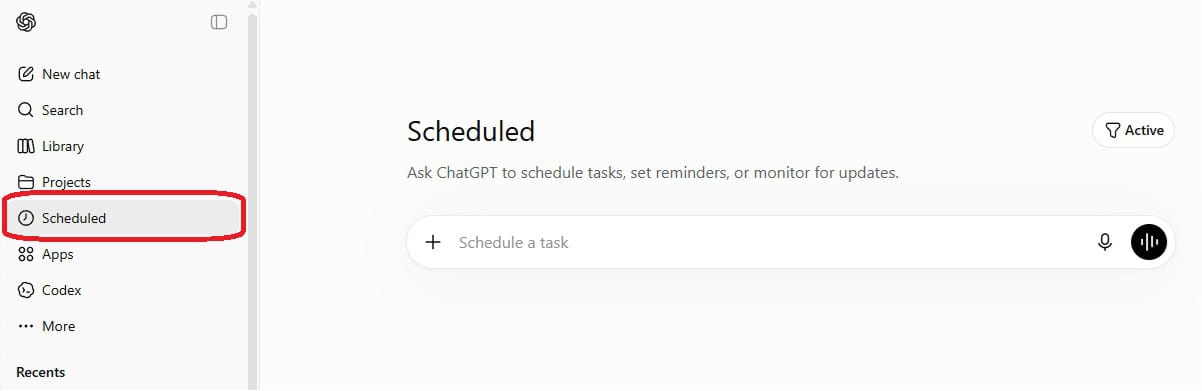
ChatGPT can now run tasks on a schedule and message you when they’re done, even when the app is closed. OpenAI recently rebuilt this into a feature called Scheduled Tasks, with a dedicated “Scheduled” section in the sidebar where you can see, pause, edit, or delete anything you set up. You create one in plain English, like “every weekday at 7 a.m., give me the top news and my calendar for the day,” and it runs in the background, then pings you by push or email at the set time. It’s on the paid plans like Plus, Pro, and Team, not the free tier.The handy part is it works for one-off and recurring jobs across your whole week, not just work. Set a Sunday-night reminder to take out the trash, a weekly Friday roundup on your favorite team, or a monitor that watches a flight fare or a product price and only messages you when it actually drops. Because it can quietly check the web on a schedule and stay silent until there’s something worth telling you, it turns ChatGPT into more of a background assistant than a chat window you have to open.
Talk to ChatGPT Instead of Typing

ChatGPT supports full voice conversations so you can talk to it like a person instead of typing everything out. In the official ChatGPT mobile app, tap the voice (soundwave) icon to start talking, ask follow-up questions out loud, and interrupt it mid-answer just like a phone call. This is handy when your hands are busy, like asking for a 20‑minute pasta recipe while cooking or getting a walking route recap while you’re out with your phone in your pocket.Voice chat also turns ChatGPT into a quick idea partner without staring at a screen. You can pace around your living room and say, “I’m stuck on a birthday gift for my dad, ask me questions until we land on three solid ideas,” and just answer with your voice. When you’re done, tell it to “summarize everything we said into a short list” so you still get a clean text version you can save or share.
Set Custom Instructions So You Stop Repeating Yourself
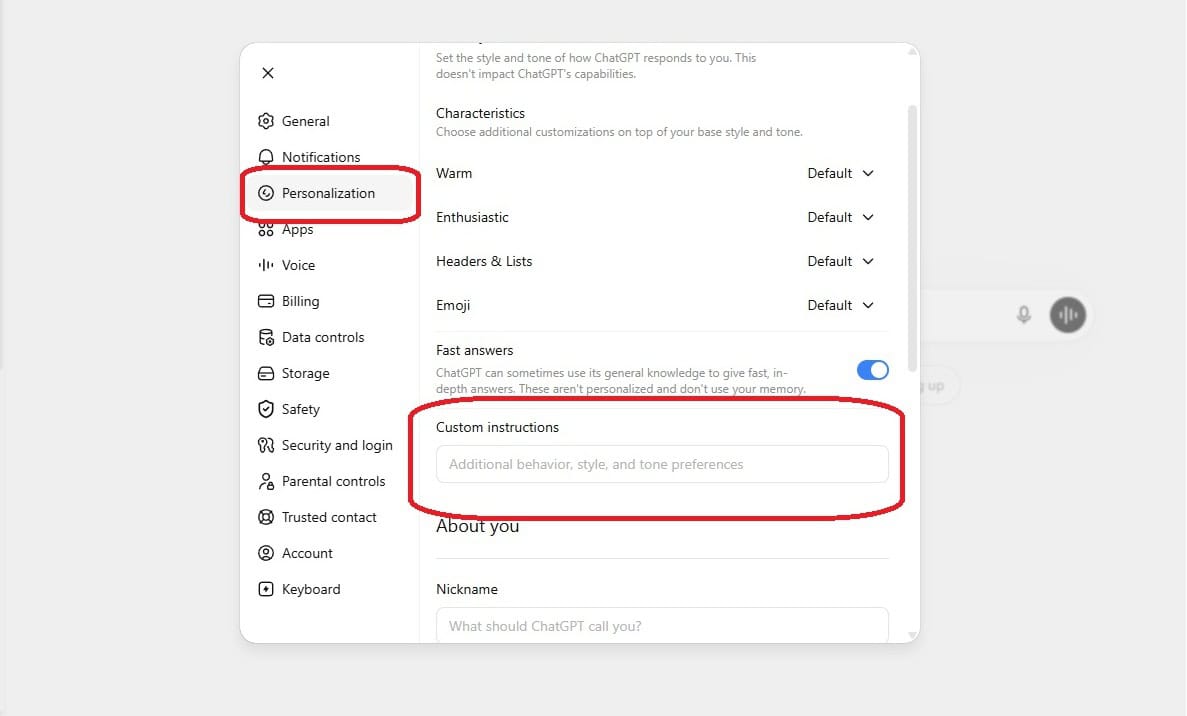
ChatGPT can remember how you like your answers so you stop typing the same instructions every single time. In the Personalization panel’s Custom Instructions section, you can tell it things like “I’m a 3rd grade teacher, keep examples classroom-friendly” or “Always answer in bullet points and keep replies under 200 words.” After that, those preferences auto-apply whether you’re asking for a vacation plan, a workout, or help rewriting an email. You can turn this on or off, edit it any time, and even use it to set a default tone like “plain English, no jargon” so every chat starts closer to what you actually want.
Snap a Photo and Ask What It Sees

ChatGPT can look at a photo you snap and tell you what it sees in plain language, not just read text. You can upload a picture of your fridge or pantry, ask “What quick dinner can I make with this?” and get specific recipe ideas based on the actual items in the image. People also use it to identify plants in their yard, figure out what’s written on a blurry label, or get outfit suggestions from a photo of clothes on their bed.To trigger it, tap the photo icon in the ChatGPT mobile app, take or upload a picture, then type a question like “What’s going on in this photo?” or “Explain this chart to me like I’m new to this topic.” For more detail, you can circle or tap parts of the image and say things like “Focus on this corner” or “Compare these two items.” It can help with everyday annoyances, like reading a confusing parking sign you snapped on the street or checking if a form you filled out by hand is missing anything obvious.
Let ChatGPT Remember Your Preferences
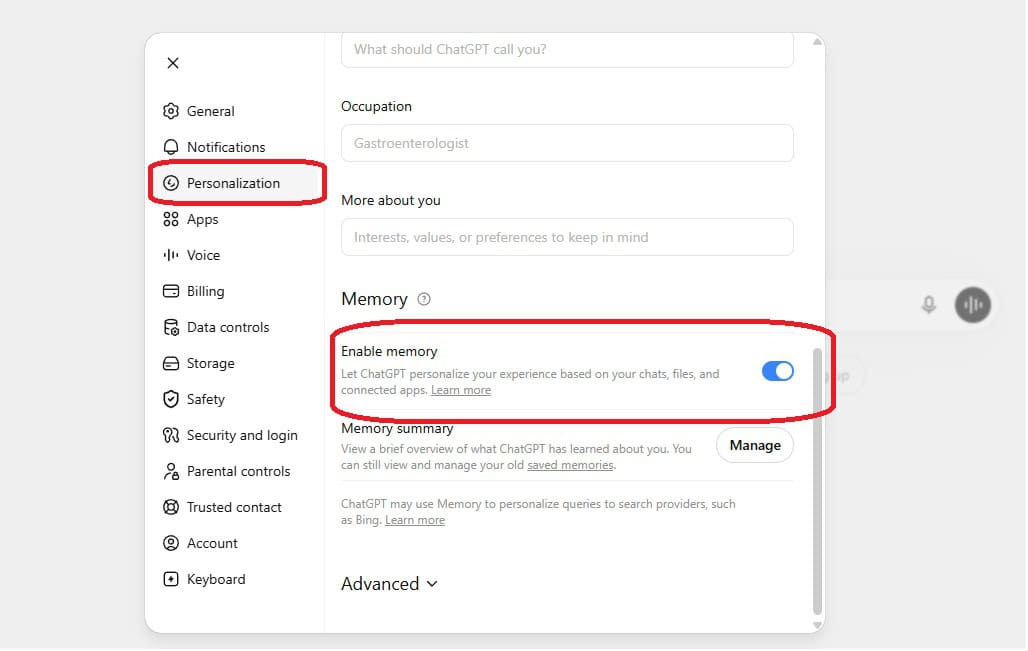
ChatGPT can remember your preferences across chats so you stop re-explaining the same details every time. In the Settings menu, you can turn on Memory, then tell it things like your job, favorite writing style, timezone, or that you always want bullet-point summaries. Next time you ask for “an email to my boss” or “a 3-day meal plan,” it can auto-apply your tone, schedule, or dietary rules without you typing them out again.You can also add or edit memories on the fly by saying something like “Remember that I have two kids in middle school” or “Forget that I work in sales, I changed jobs.” That makes everyday stuff faster, like getting study guides that match your kids’ grade level or travel plans that match your budget and city. If something feels off, you can open the Memory section and delete any stored details in a few clicks.
Generate an Image From a Plain-English Prompt

ChatGPT can turn a plain-English sentence into a brand‑new image using its built‑in image generation tool. You just type something like, “Create a 2D flat icon of a blue coffee mug with steam, on a white background, PNG style,” and it will generate a few options you can download and drop into a slide deck or social post. You can get picky with details too, asking for “realistic lighting,” “pastel colors,” or “kid-friendly style” until it looks right.You can also edit images by talking to ChatGPT about what to change instead of learning design software. For example, upload a product photo and say, “Remove the background and replace it with a light gray gradient,” or “Add the text ‘Summer Sale’ in red in the top-right corner.” This is an easy way to make thumbnails, birthday invites, or quick mockups without opening Canva or Photoshop.
Build a Custom GPT for Repeat Tasks
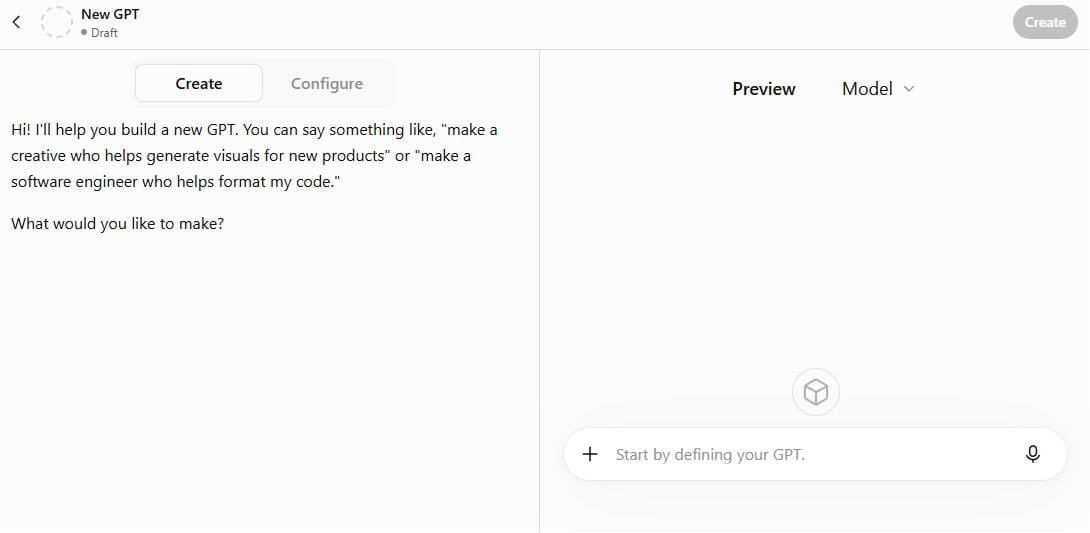
Building a Custom GPT turns your repeat chores into one-click tools inside ChatGPT. In the GPTs tab, you can hit “Create,” describe what you want, upload a couple of example files, and end up with a mini bot that remembers your exact rules for things like email tone, report format, or lesson plans. For example, you can build a “Weekly Budget GPT” that always asks for your CSV from your bank, tags each transaction into categories you choose, then spits out the same 3-part summary every Friday. Instead of re-explaining your style or instructions every time, you just open your custom bot and it runs the same workflow on demand.
Ask ChatGPT to Check the Web for Fresh Info

ChatGPT can go online and pull in fresh info using its built-in web search, which you can turn on with the Search toggle or just let it kick in automatically. Instead of asking general questions, try prompts like “Compare ticket prices for flights from Chicago to Denver next month and list three options under $250” or “What did the Fed say in its most recent press conference? Summarize it in plain English.” You get links and timestamps along with the answer, so you can click through and see the source for yourself.This is especially handy for stuff that changes fast, like new phone releases, game patches, or tonight’s TV schedule. You can say “Check the latest reviews for the newest Google Pixel phone and give me three pros and three cons” or “Look up traffic and road closures on the I-95 near Philly right now and suggest an alternate route.” Instead of opening ten tabs, you let ChatGPT do the searching and summarizing while you decide what to do next.
Upload a Spreadsheet and Ask for the Pattern
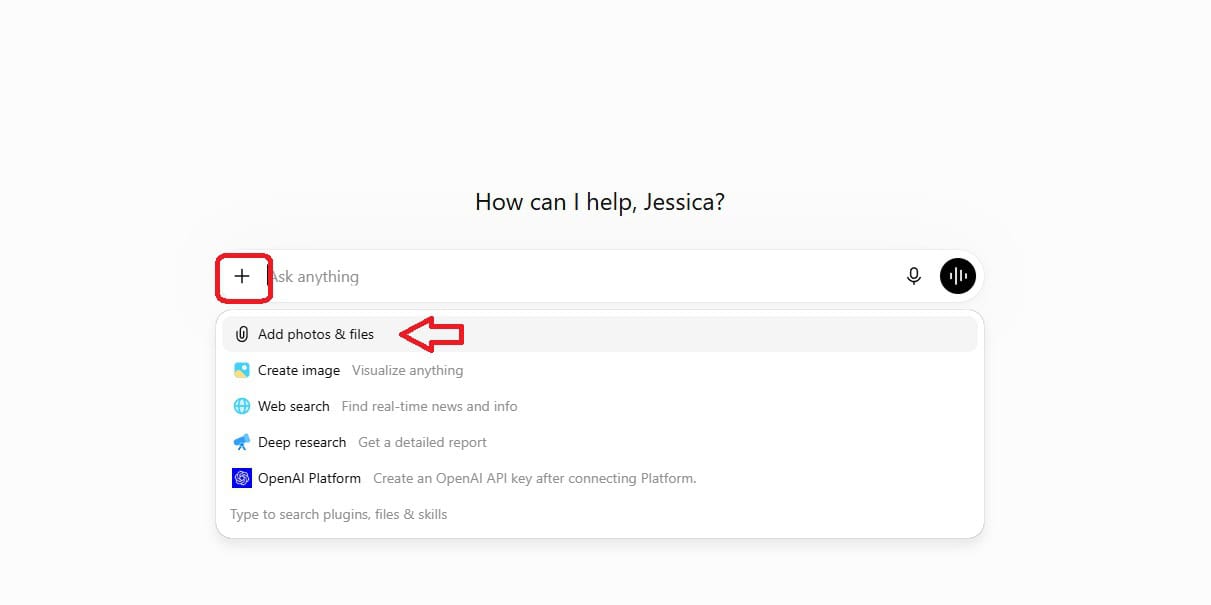
ChatGPT can read an Excel or CSV file you upload and point out patterns in the data you would probably miss on your own. In the chat, click the Plus (+) icon, then “Add photos & files” to upload your spreadsheet from Google Sheets, Excel, or Numbers, then say something like, “Look for patterns in spending by category and month, and explain them in plain English.” It can spot things like “your grocery costs jump every third week” or “your rideshare spending doubles on Fridays,” then suggest one or two simple changes based on what it sees. This works for more than money, too: you can feed it a gradebook, workout log, or sales report and ask for trends, outliers, and a one‑sentence takeaway you can act on today.
Upload a PDF and Get the Short Version

ChatGPT can read a full PDF you upload and give you a clean short version in plain English. On desktop, click the little paperclip icon, attach your PDF (like a 48‑page insurance policy or a long class reading), then type something like, “Summarize this in 5 bullet points I can read in 30 seconds.” You can push it further with questions such as, “What are the cancellation fees?” or “What should I remember for the test?”, and it will pull answers straight from the document.This trick is great for stuff like school articles, work reports, legal paperwork, or travel terms and conditions you do not want to read word for word. You stay in control by telling it the exact format you want, such as “cheat sheet,” “pros and cons,” or “explain this like I’m 14.” You get the core ideas fast, without hunting through tiny text on page after page.
Summary
The single most important takeaway is that ChatGPT is far more useful when you treat it like a hands-on tool for your files, photos, voice, and daily tasks, not just a box where you type questions. Pick one or two tricks from this post that match your life, like voice chat while you cook or PDF uploads for work and school, and try them this week. As you go, pay attention to anything you repeat a lot and turn that into Custom Instructions, Memory, or a simple custom GPT so your future chats feel faster and more personal.