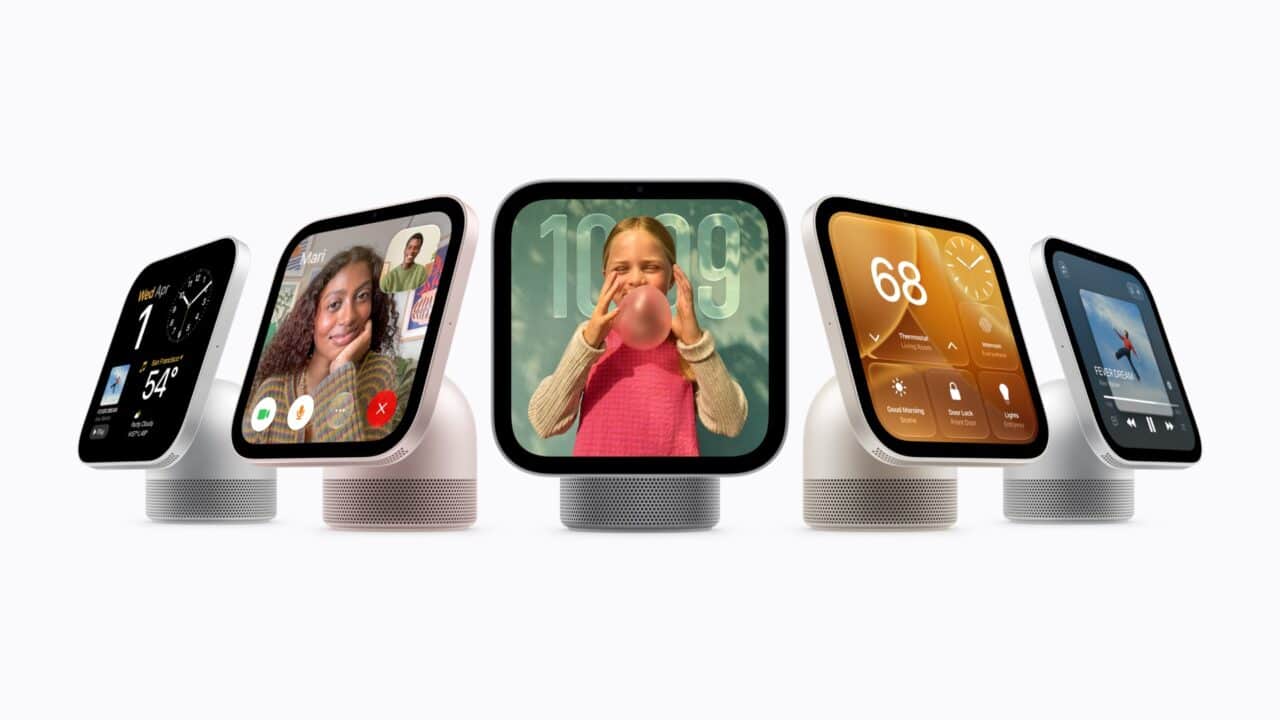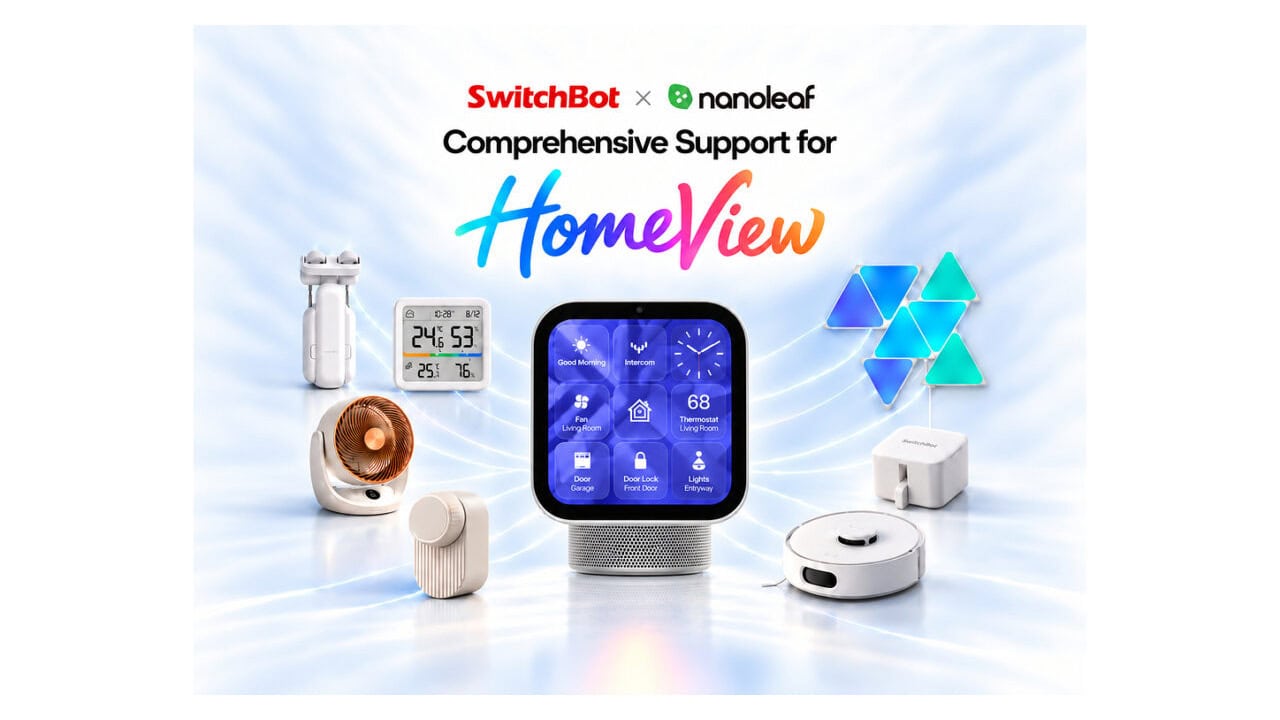
SwitchBot and Nanoleaf owners will be able to control their smart locks, sensors, lights, and other gear from Apple’s new HomeView smart display when it ships November 13, and SwitchBot has published an official step‑by‑step setup guide to walk people through it. The companies are framing this as accessory support for Apple’s new HomeView display, not as a new SwitchBot or Nanoleaf hardware launch. The focus is on helping current owners get their existing devices into HomeView, whether those products connect to Apple Home directly or through a SwitchBot Matter hub.
HomeView Support Across SwitchBot and Nanoleaf
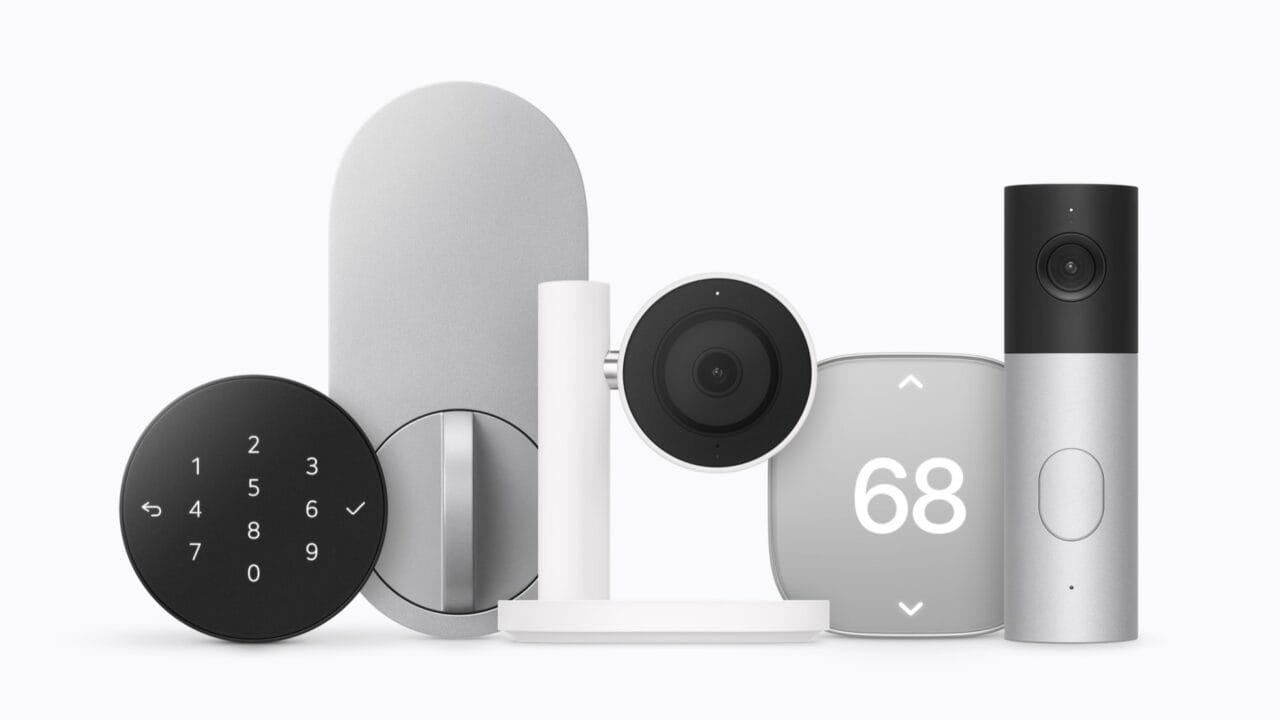
Apple HomeView is designed to pull together devices that are already in Apple Home, and SwitchBot and Nanoleaf are leaning into that by making their product lines controllable from the new display. SwitchBot says its compatible devices will work with HomeView once they are added to Apple Home. That includes categories like door locks, curtains, lights, sensors, and other smart home accessories, as long as they meet the connection requirements listed in the new guide.
Nanoleaf’s products are included in this push, giving people who already use its lighting systems another way to control and monitor their gear through Apple’s new touchscreen hub. The shared message from both brands is that HomeView is a display that controls what is already set up in Apple Home. To use it with SwitchBot or Nanoleaf, you start by getting those devices recognized by Apple Home, then HomeView can pull them in.
What You Need Before You Start
The setup guide from SwitchBot starts with one basic rule: every compatible SwitchBot and Nanoleaf device must be added to Apple Home first. HomeView sits on top of that system, so if a product is not visible in the Apple Home app, it will not appear in HomeView. This applies across the board, whether the accessory connects using Matter over Wi‑Fi or through a hub.
For products that support native Matter over Wi‑Fi, pairing is done directly with Apple Home. SwitchBot specifically calls out SwitchBot Lock Vision and SwitchBot Lock Vision Pro as examples of devices that can join Apple Home without a separate hub. Certain HomeKit‑enabled products from the two brands also pair right into Apple Home on their own. Other accessories that do not connect natively instead reach HomeView through a SwitchBot Matter hub, which keeps handling their link to Apple’s system.
How Matter Hubs Fit Into HomeView
SwitchBot is clear that HomeView does not replace the need for a Matter hub when one is required today. If you already use a SwitchBot hub to bring devices into Apple Home, that hardware stays in place and keeps doing the same job. Apple’s new display does not change how those accessories talk to the rest of your network; it just adds another way to see and control them once they are connected.
The company lists several hub options that work as Matter bridges for accessories that cannot pair directly with Apple Home. Supported models include SwitchBot Hub 3, SwitchBot Hub 2, SwitchBot Hub Mini Matter Enabled, and SwitchBot AI Hub. These hubs handle the connection between older or non‑Matter SwitchBot devices and Apple Home so that HomeView can display them. As long as the device shows up inside the Apple Home app through one of these hubs, it is eligible to appear in HomeView.
Which Products Connect Directly
For users trying to decide if they need a hub or not, SwitchBot’s guide draws a line between products with native Matter over Wi‑Fi, certain HomeKit‑enabled devices, and everything else. Lock Vision and Lock Vision Pro are the main examples named for direct Matter over Wi‑Fi pairing, which means they can join Apple Home without going through a SwitchBot hub. Once they are added, HomeView can include them alongside other smart locks and security accessories.
Some Nanoleaf and SwitchBot products that already support HomeKit can also be paired straight to Apple Home. In those cases, people follow the HomeKit onboarding process as usual, then find the devices inside HomeView after setup. Devices that rely on Bluetooth or other non‑Matter methods stay behind a SwitchBot Matter hub, which converts their connection into something Apple Home can work with. The guide encourages users to check how each accessory is added to Apple Home to understand whether a hub is required.
Where To Find the Official Setup Guide
SwitchBot has published the detailed HomeView setup guide on its website so current owners can walk through the process at their own pace. The guide goes over the basic requirements, the difference between direct Matter over Wi‑Fi products like SwitchBot Lock Vision and Lock Vision Pro and hub‑based devices, and how the supported hubs bridge older accessories into Apple Home. It also explains that Nanoleaf products follow the same rule: get them into Apple Home first, then manage them in HomeView.
For people with mixed setups that include both SwitchBot and Nanoleaf gear, the new instructions are meant to help bring everything under one Apple HomeView screen. As long as each accessory is visible in Apple Home through native pairing or, for SwitchBot gear that needs bridging, a SwitchBot Matter hub such as Hub 3, Hub 2, Hub Mini Matter Enabled, or AI Hub, it can be part of HomeView. The companies are positioning this as a setup update for existing owners, not something that requires new SwitchBot or Nanoleaf hardware beyond the HomeView display itself, and they are directing anyone with questions to the guide now posted on SwitchBot’s site.
View the original press release.