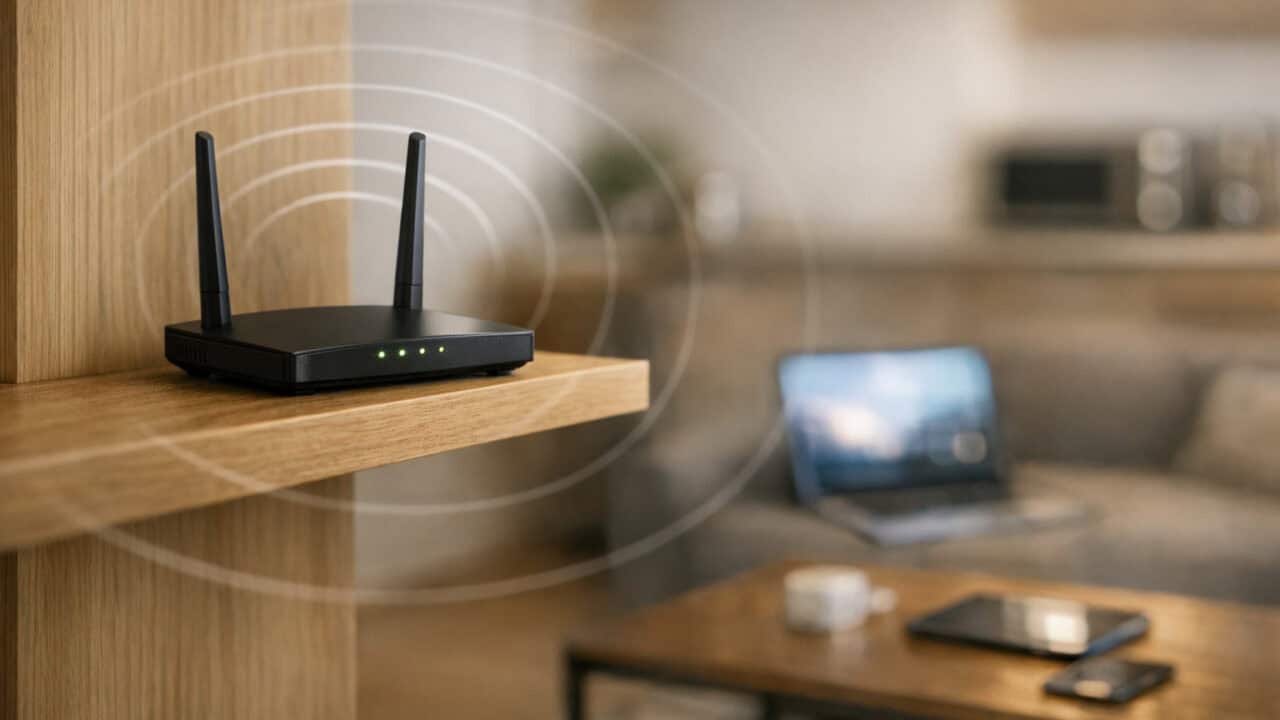
You can speed up your Wi‑Fi without buying a new router by tweaking a few settings and moving your equipment into a better spot. Simple changes like updating firmware or switching to less crowded channels can cut lag and dropped connections in just a few minutes. Keep reading to see the free fixes that can make your current router feel faster.
Move Your Router to a Better Spot
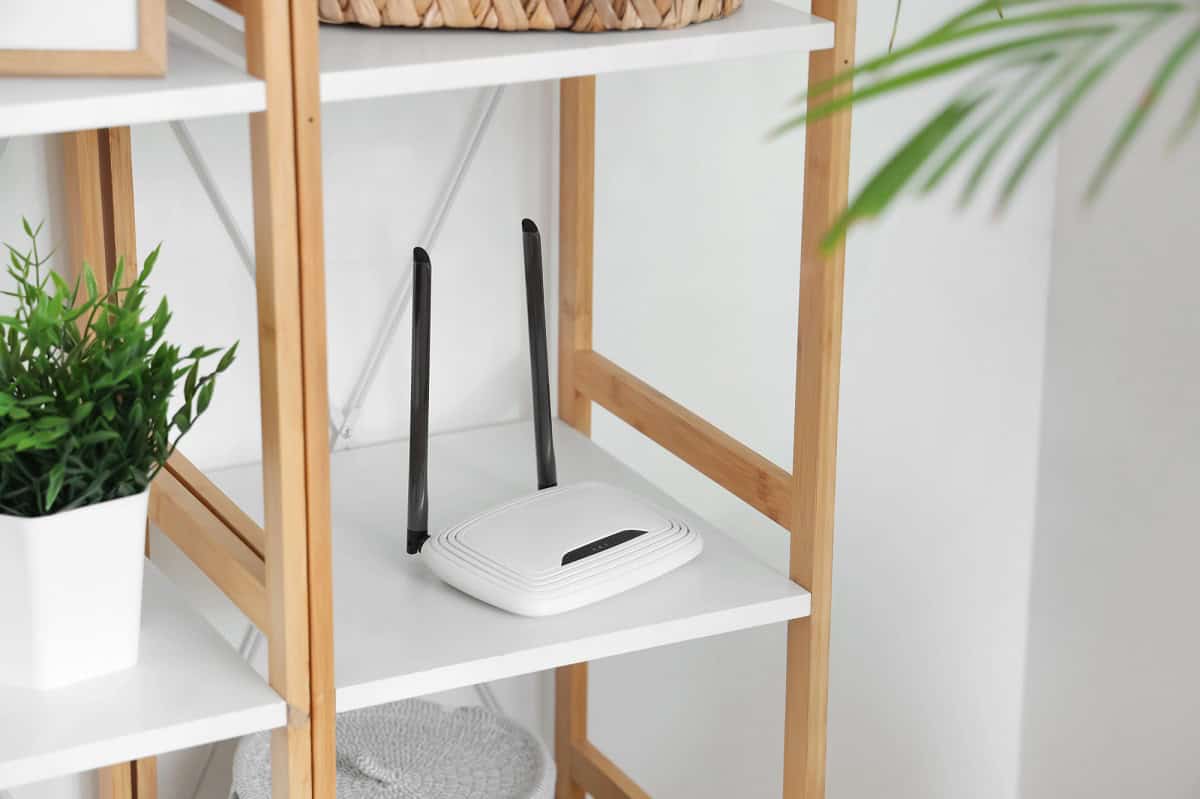
Moving your router to a better spot can speed up your Wi‑Fi more than any setting change or app tweak. Wi‑Fi signals weaken fast when they pass through drywall, brick, metal, and big furniture, so a router stuck in a closet or behind a TV stand is basically wearing a muzzle. Aim for a high, open, central location in your home, like on a shelf in the living room instead of on the floor by the modem. If placement alone does not reach a far room, a mesh system or a Wi‑Fi extender can close that gap without another router purchase. Keep it a few feet away from a microwave, cordless phone base, or big metal items, and make sure the antennas on models like the TP‑Link Archer AX55 or Netgear Nighthawk R6700 are tilted slightly outward, not straight up, so the signal spreads more evenly through your rooms.
Change to a Less Crowded WiFi Channel

Changing your Wi‑Fi to a less crowded channel can boost your speed and cut down on random slowdowns. On 2.4 GHz networks, you usually want channel 1, 6, or 11, since those are the non-overlapping channels that interfere less with each other. If your neighbors’ routers are all stuck on channel 6, jumping to 1 or 11 can feel like moving from a traffic jam to a side street. A crowded channel is also a common cause behind smart bulbs dropping off the 2.4 GHz band, since interference hits low-power devices first.You can use a free Wi‑Fi analyzer app, like WiFi Analyzer on Android or NetSpot on Windows and macOS, to see which channels are busiest. Then log into your router’s admin page (such as an ASUS RT-AX55, TP-Link Archer AX21, or Netgear Nighthawk), look for “Wireless” or “Advanced” settings, and change the 2.4 GHz channel from “Auto” to your chosen number. On mesh systems like eero or Google Nest Wifi, you usually cannot pick the exact channel, but rebooting the system can push it onto a less crowded one.
Update Your Router’s Firmware
Updating your router’s firmware can speed up your Wi‑Fi by fixing bugs and stability issues that slow everything down. Firmware is the router’s built-in software, and brands like Netgear, TP-Link, and ASUS push updates that patch security holes, improve 2.4 GHz and 5 GHz performance, and fix random disconnects. On most routers, you log into the admin page, look for a section labeled “Firmware Update” or “Advanced > Administration,” then tap “Check” or “Update” to install the newest version. Newer systems like Google Nest Wifi and eero can auto-update in the background, but it is still worth opening their apps and confirming you are on the latest firmware version before you assume the hardware is “too slow.”
Where These Settings Live on Netgear, TP-Link, ASUS, and eero
The settings covered above are the same everywhere, only the menu names move. On every brand here, the browser admin page can do more than the phone app.
Netgear: Sign in at routerlogin.net. Channel sits under Wireless, next to the Region picker. Firmware is under ADVANCED > Administration > Router Update. Dynamic QoS is a BASIC-screen tile. Scan for a clean channel in the Nighthawk app (Android only), then change it in the browser. (Netgear KB 23783, 24217, 25613.)
TP-Link: Sign in at tplinkwifi.net, then Advanced > Wireless > Wireless Settings. In the Tether app, channel and width sit under More > Wi-Fi Settings > pick the network > Advanced. (TP-Link FAQ 3085, 2541.)
ASUS: Sign in at asusrouter.com. Channel picking is on the Wireless > General tab, and only there, per ASUS. Newer firmware moved band-splitting to Network > Main network profile, unticking every band but one per SSID. Older firmware uses a Smart Connect switch on Wireless > General. (ASUS FAQ 1011432, 1012132.)
eero: App only. Settings > Advanced networking holds DNS for the Cloudflare or Quad9 change, and Wireless holds Client steering. eero does not let you pick a channel at all, so that step does not apply. (eero support 360059988432, 360036385311, 207613326.)
Label wording shifts by model and firmware; look for Wireless, Firmware, or QoS rather than an exact match.
Split 2.4 GHz and 5 GHz Into Separate Network Names

Splitting your 2.4 GHz and 5 GHz Wi‑Fi into separate network names can stop your devices from getting stuck on the slower band. Many routers from Netgear, TP-Link, ASUS, and even ISP gateways ship with a single SSID like “HomeWiFi” that hides both bands under one name. When band steering is flaky, your iPhone or laptop might cling to 2.4 GHz at 50 Mbps even when 5 GHz could give you 300 Mbps in the same room.To fix this, log into your router’s admin page, find the Wireless or Wi‑Fi settings, and look for separate options for 2.4 GHz and 5 GHz. Turn off “Smart Connect” or “band steering,” then rename them to something like “HomeWiFi_2G” and “HomeWiFi_5G” with the same WPA2 or WPA3 password. Connect fast devices like a PS5, Apple TV 4K, and newer laptops to the 5 GHz network, and leave Ring cameras, smart plugs, and older gadgets on 2.4 GHz. This one change often cuts lag on streaming and gaming without buying a new router.
Turn On QoS and Prioritize Video Calls and Gaming

Turning on QoS (Quality of Service) lets your router give video calls and gaming traffic first priority so they stay smooth even when your network is busy. On many ASUS and TP-Link routers, you can log into the admin page, look for a section called “QoS,” “Traffic Control,” or “Device Priority,” and turn on Smart QoS or Adaptive QoS. From there, you can drag your Xbox, PlayStation, Nintendo Switch, or work laptop into a “High Priority” list, or set Zoom, Microsoft Teams, and Discord as top-priority apps. On Google Nest Wifi, the equivalent setting is called “Prioritize device” instead of QoS, but it does the same job of keeping your games and calls from lagging whenever someone else starts a big download.
Switch Your DNS to Cloudflare, Google, or Quad9
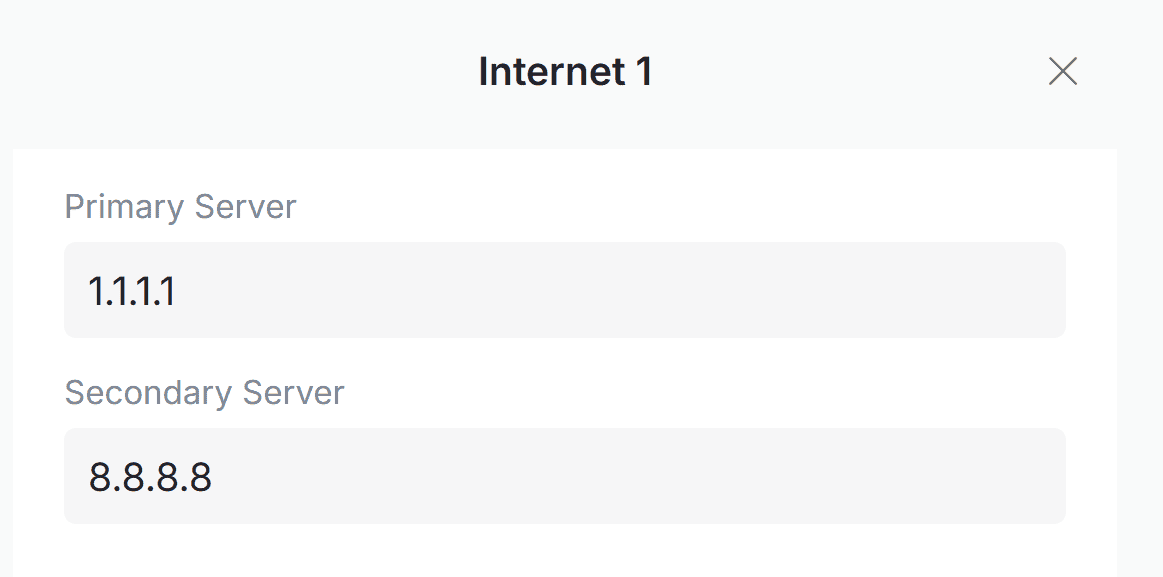
Switching your DNS to Cloudflare, Google, or Quad9 can speed up how fast websites start loading, especially on laggy Wi‑Fi. Your router normally uses your internet provider’s DNS, which can be slow or overloaded, adding an extra second or two every time you open a site or start a stream. Cloudflare’s DNS uses 1.1.1.1 and 1.0.0.1, Google uses 8.8.8.8 and 8.8.4.4, while Quad9 uses 9.9.9.9 and 149.112.112.112. All are known for quick response times and strong uptime. This change does not boost your raw Mbps like upgrading to a faster plan, but it can make your connection feel snappier during normal browsing and gaming.
To switch DNS on most routers like ASUS, TP-Link, or Netgear, open your router’s admin page, look for “Internet,” “WAN,” or “Advanced” settings, then find “DNS Server” fields. Replace the existing numbers with Cloudflare (Primary: 1.1.1.1, Secondary: 1.0.0.1), Google (Primary: 8.8.8.8, Secondary: 8.8.4.4), or Quad9 (Primary: 9.9.9.9, Secondary: 149.112.112.112) and save or apply. On mesh systems like eero or Google Nest Wifi, you may need to use the mobile app and look under “Network Settings” or “Advanced networking” to change DNS. After your router reboots, test a few sites or a speedtest.net page to see if pages start loading faster and video buffers less.
Put Smart Home Devices on the Guest Network

Putting smart home gadgets on your router’s guest network keeps their constant chatter from slowing down your main Wi‑Fi. Devices like Philips Hue bulbs, smart plugs, cheap cameras, and Wi‑Fi switches ping the network all day, which can make Zoom calls and Netflix on your main SSID feel laggy when you have 20 or 30 of them.Most modern routers from brands like TP‑Link, Netgear, ASUS, Google Nest Wifi, and Amazon eero have a “Guest network” toggle in their app or web dashboard. Beyond the speed boost, keeping smart home devices on a guest network also adds a layer of security between your gadgets and your personal devices. Turn it on, give it a simple name like “Home-IoT” with its own WPA2 or WPA3 password, and reconnect your bulbs, plugs, and smart speakers to that network instead of your main one. For extra safety, look for a setting like “Guests can access local network” and turn that off so those devices only talk to the internet, not your laptops and phones.
Summary
The single most important fact is that moving your router to a higher, more open, central spot usually gives you the biggest Wi‑Fi speed gain without buying new hardware. Start there, then log into your router to switch to a cleaner Wi‑Fi channel and check for a firmware update while you are already in the settings. If streaming still feels slow, split 2.4 GHz and 5 GHz into separate names, turn on QoS for your main devices, and consider moving smart plugs and bulbs to a guest network to keep them from dragging everything down.