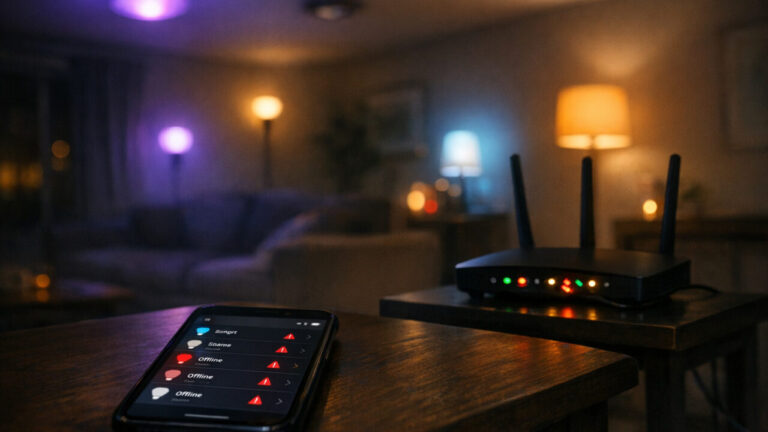
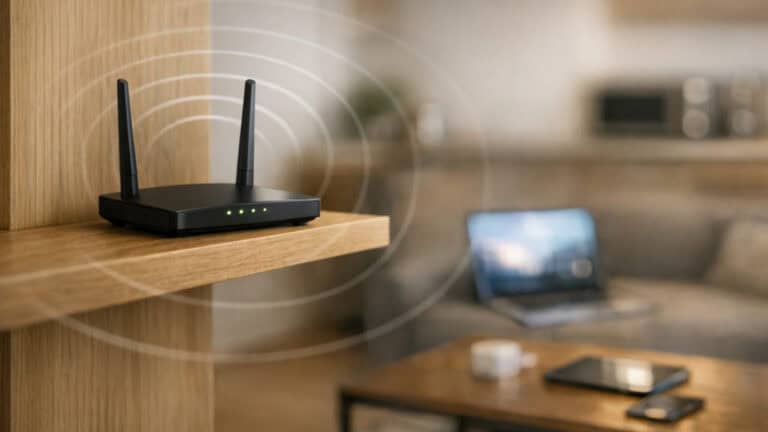
If you have a lot of smart home devices, you might notice your internet getting slower or some things not working right. Devices like cameras, video doorbells, and smart speakers can use a lot of your network’s power without you knowing it. This can make streaming, online games, or even simple web browsing harder to enjoy. This post looks at which smart home gadgets can cause these problems and shares some easy ways to keep everything running smoothly. If you want to keep your smart home working without slowing down your internet, keep reading for some tips that can help.
Smart TVs and Streaming Devices
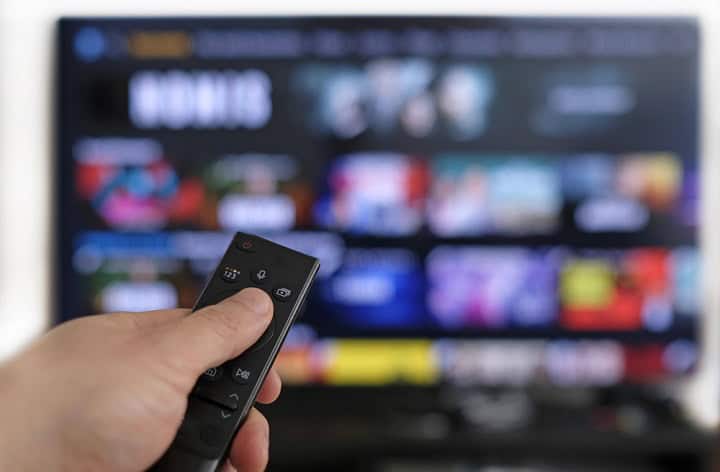
Smart TVs and streaming devices are common in many homes. When several of these devices stream video at the same time, they use a large amount of bandwidth. This can slow down other internet activities in your home. If you notice buffering or poor video quality, you may need to manage your network better. One way to help is by setting up Quality of Service, or QoS, on your router, which lets you give priority to video streaming or certain devices. You can also try to limit the number of high-definition streams running at once, or use a wired connection for your TV or streaming box instead of Wi-Fi. Keeping your streaming devices and router updated with the latest software can also help with network performance.
Video Doorbells and Security Cameras
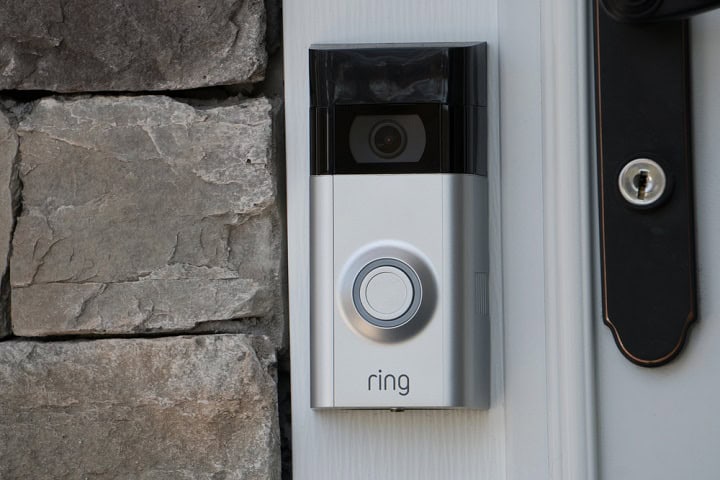
Video doorbells and security cameras are common smart home devices that can put a lot of pressure on your home network. These devices often stream high-definition video around the clock, which uses a lot of bandwidth. If you have several cameras, your internet can slow down, making other devices lag or drop connections. To help with this, you can lower the video quality settings on your cameras or set them to record only when they sense motion. Many modern routers also let you give certain devices priority, so things like video calls or streaming on your TV do not get interrupted by your cameras. You can also consider connecting cameras and doorbells with ethernet, which can help keep your wifi network more stable for other devices. Cameras are also the devices most worth locking down, so it is worth checking the network settings people most often leave open.
Smart Speakers and Voice Assistants

Smart speakers and voice assistants like Amazon Echo and Google Nest are common in many homes. A single smart speaker uses very little bandwidth. Streaming music sits well below what one video stream needs, and a voice command is smaller still. What a roomful of them costs you is not raw speed but slots on the router, since each one holds an open connection whether you talk to it or not. Cheaper routers start to stumble once the device count climbs into the dozens. If the count is getting away from you, moving smart home gadgets onto a guest network keeps their chatter off the same network as your laptops and phones.
Game Consoles

Game consoles like the Xbox and PlayStation can put a lot of pressure on your home network, especially during downloads or online gaming. These devices use a good amount of data and can slow down the connection for other smart home gadgets if there is not enough bandwidth to go around. If you notice lag or slower speeds when your console is running, you can start by setting up Quality of Service, or QoS, on your router. The control is in a different menu on every brand, and we mapped out where QoS and channel settings live on Netgear, TP-Link, ASUS, and eero. This lets you pick which devices get more of your internet speed when there is a lot of traffic. You can also make sure your console is connected by a wired Ethernet cable instead of Wi-Fi for a more stable connection. Turning off automatic updates and large downloads during busy times can help, too. These steps can help keep your network running smoothly so all your devices work the way they should.
Smart Appliances
Smart appliances like connected refrigerators, smart ovens, washing machines, and similar devices can take up a good amount of your home network’s bandwidth. These appliances often run updates, pull down ads to display, send usage data, or connect to apps, which can slow down your network when added to other smart home products. One way to help with this is to set up a separate network just for smart devices so they do not compete with phones, computers, or streaming devices. You can also use features in your router like Quality of Service to make sure more important devices get faster speeds. Keeping your appliances’ firmware up to date can help with security and performance, but it is a good idea to schedule updates for off-peak times. This way, smart appliances will not slow down your connection when you need it most.
Mesh WiFi Solutions
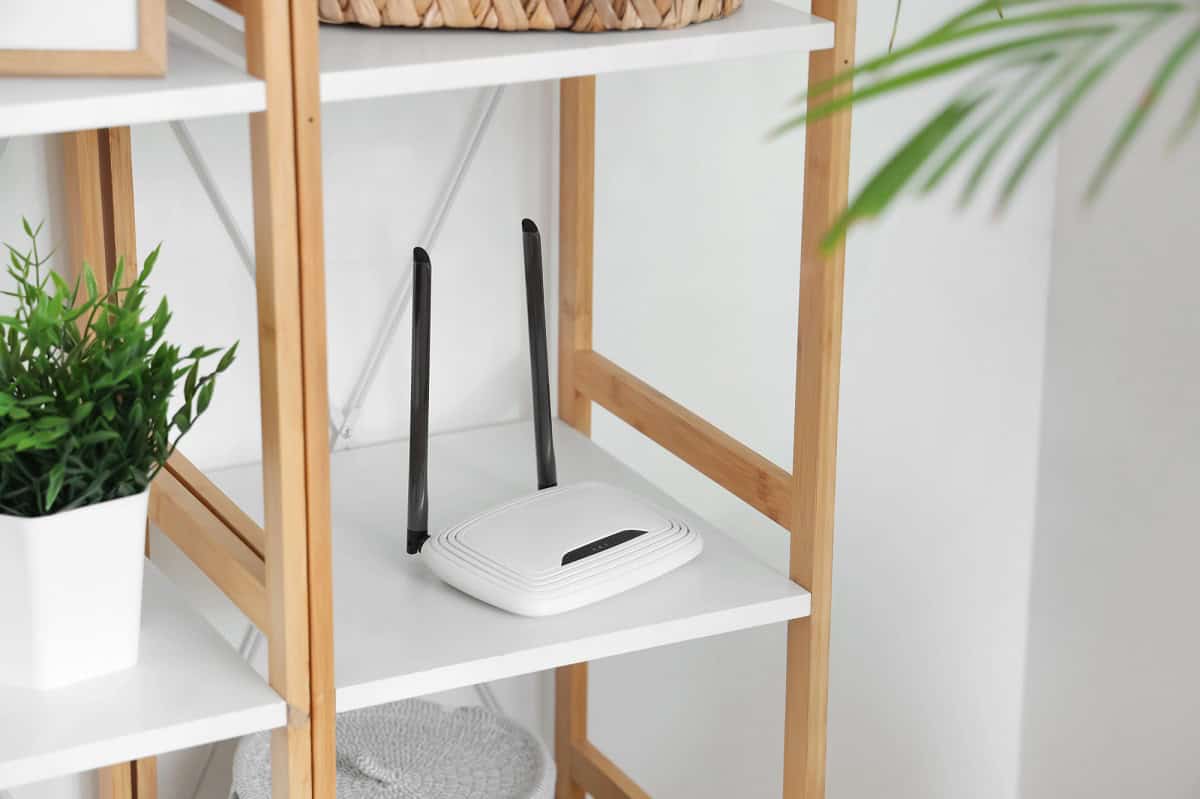
If you have a larger home with slow or dead spots in your network, one way to help is to use a mesh WiFi system. You can test your network speed throughout your home using simple apps to find the weak or dead spots. If you find multiple dead spots or slower spots where you want to use WiFi, we recommend upgrading to a Mesh WiFi network. Mesh WiFi uses several smaller routers spread around your house instead of one main router. This helps keep the signal strong in every room, so your smart devices stay connected. Mesh WiFi can keep things running smoothly, even when many smart devices are working at the same time.
Summary
If you have a lot of smart home devices, it is pretty common to notice your internet slowing down or certain things not working right. Devices like cameras, video doorbells, smart TVs, and game consoles can all use up a good amount of your Wi-Fi’s bandwidth, and smart speakers and bulbs add to the device count even though each one is small. This can make streaming video, gaming, or even browsing the web a lot harder, especially if everything is on the same network. There are a few simple steps you can take to help with these problems. Turning on Quality of Service for the devices you care about most, moving smart gadgets onto a guest network, keeping firmware updated, and switching to mesh Wi-Fi if you have dead spots can all keep your network running better. Watching your network activity and knowing which devices use the most data is also helpful. Taking these steps can keep your smart home working while making sure your internet stays steady for everyone in your house.