Your smart lights keep disconnecting because the network they sit on is fighting them, usually with band steering, mesh roaming, or short DHCP leases that confuse low-power devices. For bulbs like Philips Hue, LIFX, Wyze, Kasa, and Tuya-based brands, small settings like forcing 2.4 GHz, turning off fast roaming, or giving the Hue Bridge a static IP often fix “offline” issues for good. Keep reading to see what to change on your router and apps so your lights stay online.
Is it one bulb or all of them?
Start by checking how much of your setup is affected, since that points straight at the fix. One bulb going dark on its own usually means a power, switch, or range problem, not the network. Every Wi-Fi bulb dropping together points to the router: band steering, a channel change, or DHCP. A whole hub going offline, like all your Hue or Zigbee bulbs at once, means check the bridge itself, and if voice control fails too, the issue is probably your account or cloud connection rather than local Wi-Fi.
Smart bulbs dropping off because your router is steering them to the wrong band

Smart bulbs keep dropping when your router keeps trying to move them between 2.4 GHz and 5 GHz using band steering. Most Wi-Fi smart bulbs from brands like Kasa, Wyze, Sengled, Govee, and Tuya-based bulbs only speak 2.4 GHz, while newer routers from Netgear, TP-Link, and Eero ship with a single network name that blends 2.4 and 5 GHz together. The router then “helps” by pushing devices to 5 GHz for speed, which works for your phone but confuses bulbs that can’t follow that move. The result is random disconnects, bulbs stuck as “offline” in the app, or scenes where half the lights fail.The fix is to stop the router from steering bulbs to the wrong band by giving 2.4 GHz its own lane. Log into your router and either create a separate 2.4 GHz-only SSID (like “Home-IoT-2G”) or turn off band steering and broadcast 2.4 and 5 GHz as different names. Put only your smart bulbs and other cheap IoT gear on that 2.4 GHz network, and keep your phone and laptop on 5 GHz or Wi-Fi 6/6E. Once each bulb stays locked to 2.4 GHz, the random drops usually disappear.
Mesh roaming that keeps bouncing bulbs between access points
Your smart lights keep disconnecting because mesh Wi-Fi roaming keeps bouncing each bulb between access points like a confused phone that never stands still. Some newer routers use 802.11k/v/r “fast roaming” to move phones and laptops to the closest node, but tiny 2.4 GHz bulbs often freak out when the signal source keeps changing. Every time the mesh decides a different node is “better,” the bulb has to re-authenticate, and some just give up and show as “offline” in the app.
The fix is to calm the network down for those bulbs by turning off fast roaming on your IoT Wi-Fi. On UniFi, that means disabling 802.11r (Fast Roaming) and 802.11k/v on your smart-home SSID; on Orbi or Deco, look for a “Fast Roaming”, “Smart Connect”, or “Mesh Technology” toggle and turn it off for the 2.4 GHz or IoT network. Pair that with a dedicated 2.4 GHz SSID for smart devices, and most of the random dropouts from mesh roaming go away.
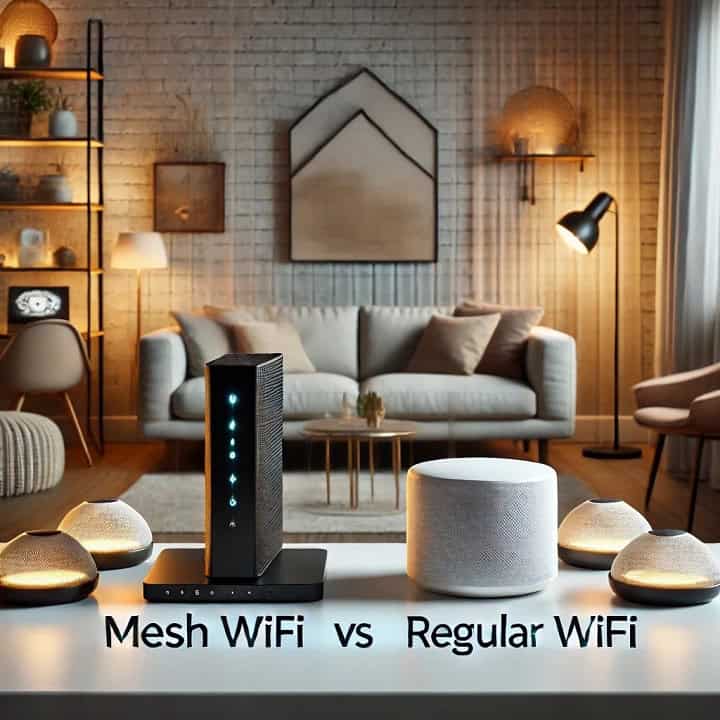
Still deciding between a full mesh system and a plug-in extender for your home network in the first place? Our comparison of mesh Wi-Fi vs Wi-Fi extenders breaks down which setup actually fits your house.
Wall switches cutting power and making bulbs look disconnected

Wall switches cutting power to smart bulbs makes them *look* disconnected when they’re really just rebooting and trying to rejoin the network. When someone flips a regular wall switch that controls a smart bulb, the power to that bulb drops to zero, so it can’t stay connected to Wi‑Fi or Zigbee like it’s supposed to. When the switch comes back on, the bulb has to boot, grab an IP address again (for Wi‑Fi bulbs), and reconnect to the app, which can take anywhere from 30 seconds to a few minutes. The clean fix is to keep power always on to the bulb, replace the switch with a smart switch and use a dumb bulb, or get everyone in the house used to using the app, a voice assistant, or a wireless remote instead of the physical switch.
Router channel and bandwidth settings that break 2.4 GHz bulbs
Your smart lights keep disconnecting because many 2.4 GHz bulbs freak out when your router quietly changes Wi‑Fi channel or uses the wrong channel width. Most Kasa, Wyze, Govee, and Tuya-based bulbs are tuned for a 2.4 GHz network with a fixed 20 MHz channel on channel 1, 6, or 11. When a router jumps to a crowded channel or uses 40 MHz “auto” mode, those bulbs see more overlap and noise and start dropping offline. Some routers also flip channels after a firmware update or nightly “auto optimize,” so a bulb that paired fine on channel 1 can suddenly lose its mind when the router hops to channel 9 at 40 MHz. The fix is to log into your router, lock the 2.4 GHz band to channel 1, 6, or 11, set channel width to 20 MHz only, and turn off any “auto” or “smart” channel features so your smart bulbs always wake up to the same clean signal.
On UniFi gear specifically, that automatic channel picker is the same feature behind the fast-roaming settings covered above: it has historically been called Optimize Channelization, and on newer firmware it is being folded into the Channel AI RRM feature. Look for Optimize Channelization or Channel AI under Settings → WiFi, and switch it to manual if you want your channel to stop moving on its own.
If you also run Zigbee bulbs or a hub, the same channels matter
Zigbee and Wi-Fi share the same 2.4 GHz airspace, so your router’s channel choice affects Zigbee-based bulbs and hubs too, not just Wi-Fi ones. Wi-Fi channels 1, 6, and 11 sit on the same frequencies as Zigbee channels 11 through 22, so a busy Wi-Fi channel can add noise to a Zigbee mesh running near it. Zigbee channels 15 and 20 fall in the small gaps between those Wi-Fi channels, and channel 25 or 26 sits clear past channel 11, which makes them the safer picks if your Zigbee hub lets you set the channel manually. Not every Zigbee radio supports channel 26, so 15 or 20 are the safer bet in practice. For more on picking and pairing Zigbee gear, see our guide to what to know before buying Zigbee devices.
| Zigbee channel | Overlaps Wi-Fi channel |
|---|---|
| 11-14 | 1 |
| 15 | Clear |
| 16-19 | 6 |
| 20 | Clear |
| 21-24 | 11 |
| 25-26 | Clear (limited device support on 26) |
Mains-powered Zigbee plugs and outlets often double as repeaters that extend your mesh, though repeater performance varies a lot by device. Our review of the Sonoff S31 Lite ZB covers its repeater role and where it falls short.
DHCP lease problems that leave bulbs offline after renewals

Your smart lights keep dropping offline right after a day or two because the router’s DHCP lease expires and the bulbs do a poor job grabbing a new IP address. Most home routers hand out IPs with a 24‑hour lease, so that Philips Hue Bridge, LIFX Color A19, or a cheap Tuya bulb can suddenly “vanish” from the app once the lease timer runs out. The router is ready to renew the address, but some bulbs just stop talking, so they sit offline until you power‑cycle them or reset Wi‑Fi.You can usually stop this by giving your smart bulbs longer leases or “reserved” IPs. Log into your router, find the DHCP settings, and set the lease time for your IoT subnet to 7 days or longer, or use DHCP reservation / “Address Reservation” to bind each bulb’s MAC address to a fixed IP. For a Hue setup, do this for the Hue Bridge so it never hops to a new address and breaks connections with apps and voice assistants. After you change the setting, reboot the router once, then power‑cycle the bulbs so they grab their new, stable IPs.
Brand-specific disconnects with Hue, LIFX, Wyze, and other smart lights

Your smart lights keep disconnecting because each brand talks to your network in a slightly different way, and those quirks hit problems with real-world Wi-Fi and routers. Philips Hue bulbs use Zigbee through the Hue Bridge, so when all of your Hue bulbs “go offline,” it is usually the Bridge losing its IP after a router reboot or DHCP change, not the bulbs themselves. Giving your Hue Bridge a static IP in your router settings usually stops those random drop-offs.
LIFX bulbs connect on 2.4 GHz Wi-Fi only and rely on UDP/TCP port 56700, so aggressive firewalls or “secure” modes on routers like Netgear Nighthawk and Asus can quietly block them. If your LIFX bulbs go “offline” in the app but still show up in your router’s client list, check that port 56700 is open and that your 2.4 GHz SSID is separate from 5 GHz band steering. Wyze bulbs are tightly tied to Wyze’s cloud, which means when Wyze has an outage or your internet blips, the bulbs can say “offline” even while still connected locally, and there is no local-only fix besides waiting, keeping firmware updated, and making sure they have a strong 2.4 GHz Wi-Fi signal.
Matter-over-Thread bulbs depend on a border router you might not think about
Matter-over-Thread bulbs do not talk to your router directly. They need a Thread border router to bridge them to the rest of your network, and a problem with that border router looks exactly like a dropped bulb. The Wi-Fi and Ethernet model of the Apple TV 4K, and Google’s Nest Hub and Nest Hub Max, can all act as Thread border routers, so if that device reboots, loses power, or gets moved somewhere with a weak Wi-Fi signal, every Thread bulb attached to it can drop offline at the same time. If your Thread bulbs went dark together, check that device first before assuming the bulbs themselves are broken. For more on how Thread stacks up against Zigbee, see our breakdown of whether Zigbee is being replaced by Thread.
A dedicated 2.4 GHz IoT network that stops most disconnects
A dedicated 2.4 GHz IoT network stops most smart light disconnects by giving your bulbs a stable, low-bandwidth Wi-Fi lane that never changes bands or features under them. When you create a separate SSID like “Home-IoT,” lock it to 2.4 GHz only, force 20 MHz channel width, use WPA2-PSK (AES), and turn off band steering and fast roaming, you remove the main reasons smart bulbs randomly drop offline. On an Eero or Orbi system, that usually means adding a guest-style network and setting it to 2.4 GHz only for IoT, while a basic ISP router often has an “IoT” or “guest” toggle you can customize the same way. Once you move all your bulbs to this network, you sidestep band steering, flaky mesh roaming, and most DHCP or channel-change weirdness in one shot.
That WPA2-PSK (AES) choice matters more than it looks. Many older smart bulbs do not support WPA3-only networks, so turning on WPA3-only for convenience elsewhere in the house can quietly lock cheaper IoT gear out. If your router offers a WPA2/WPA3 mixed mode, use that on the main network and keep the IoT SSID on WPA2-PSK (AES) alone.
Stale firmware and app data cause the same symptoms
Outdated bulb firmware or a stuck app cache can produce the same random “offline” status as a network problem, so it is worth ruling out before you touch router settings. Check for firmware updates in the Hue, LIFX, Wyze, or Kasa app, and force-close and reopen the app if a bulb shows offline but still responds to a physical switch. If you use Alexa, Google Home, or HomeKit, remove and re-link the smart light integration after a firmware update, since voice assistants sometimes hang onto a stale device ID that no longer matches the bulb.
Summary
Smart lights stay connected when they sit on a simple, stable 2.4 GHz network that does not keep changing bands, channels, or IP addresses. If your bulbs keep going “offline,” start by putting them on a dedicated 2.4 GHz SSID, turning off band steering and fast roaming, and locking the channel to 1, 6, or 11 at 20 MHz. Then give your Hue Bridge or Wi-Fi bulbs reserved IPs in your router so DHCP renewals do not knock them out. Make those changes once, and you should go from daily dropouts to smart lights you do not have to think about.