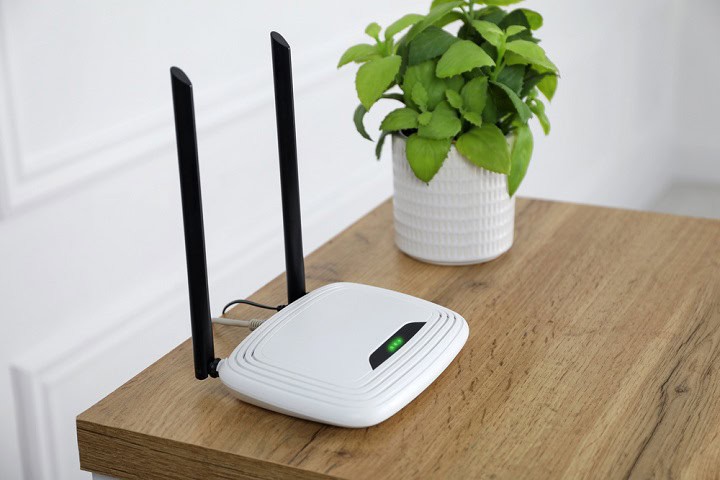
If your movies keep buffering or your shows get stuck loading, you might be ready to give up on streaming for the night. Before you do, there are a few quick changes you can try on your Wi‑Fi router that might help. These changes don’t take much time, and you do not need to be a tech expert to try them. This post will walk you through some settings that could help you get smoother streaming at home.
Change Your Router Channel

Changing your router channel can help fix slow streaming speeds, especially if you live in an area with many Wi-Fi networks. When too many devices use the same channel, signals can collide and cause buffering. To fix this, go into your router settings and look for the wireless or Wi-Fi section. On the 2.4 GHz band, you can pick a different channel, like 1, 6, or 11, which do not overlap with each other. After switching, you might notice fewer dropouts and a smoother streaming experience. If you are not sure which channel is best, some routers have an auto setting that picks the least crowded one for you.
Switch to the 5GHz Band

Switching your Wi-Fi to the 5GHz band can help your streaming speeds if you notice lag or buffering. Many routers come set to use both 2.4GHz and 5GHz, but some devices still connect to the slower 2.4GHz by default. The 5GHz band offers faster speeds and usually has less interference from other devices in your home. To make this change, you can log in to your router’s settings and check if your streaming device is on the 5GHz band. If it is not, you can either pick the 5GHz network from your device’s Wi-Fi list or set your router to use band steering if it supports that feature. This can make your video streams more stable and help keep the picture clear.
Move Your Mesh Node Closer
If you use a mesh Wi-Fi system and your node is far away, moving your mesh node closer to where you stream can help your speeds. Mesh nodes pass the signal along, so if one is too far away or blocked by walls, the connection might slow down. Try to place the mesh node in the same room or at least in a spot where there are fewer walls in between. This can help your streaming stick or smart TV get a stronger signal, which usually means less buffering and a better picture. Small changes to where you put the node nearest your TV can make a difference, so try a spot with fewer walls between it and the room where you watch.
Turn On QoS for Your Streaming Stick

Turning on Quality of Service, or QoS, can make a difference if you use a streaming stick. Routers with this feature let you give priority to certain devices, which means your streaming stick can get better speeds during times when the network is busy. To do this, open your router’s settings and find the QoS section. The menu names differ by brand, and we mapped out where QoS, channel, and firmware controls live on Netgear, TP-Link, ASUS, and eero if you need to find yours. There, you can add your streaming stick’s MAC address and set it as a high priority device. This can help make your movies and shows play more smoothly, even if others in your house are browsing or downloading files at the same time. Make sure to save the changes before leaving the settings page.
Reduce Connected Devices

One way to help your Wi-Fi handle streaming better is by reducing the number of connected devices. Every phone, laptop, smart speaker, or tablet on your network uses some part of your available bandwidth. When too many devices are connected, your streaming stick or smart TV may not get enough speed to play video smoothly. Try disconnecting gadgets you are not using, or ask family members to pause downloads or big updates while you stream. Some device types are heavier than others, and it helps to know which smart home devices strain your network before you start unplugging things at random. You can also log into your router and check for unknown devices, then remove anything you do not recognize. This can free up more bandwidth for your streaming device, making videos load faster and buffer less.
Use a Wired Connection for Your TV

One tip that many people overlook is using a wired connection for your TV instead of relying on Wi‑Fi. If your TV or streaming device has an Ethernet port, plugging it straight into your router with a cable can give you a stronger and more steady connection. This can help keep your streaming from buffering or dropping in quality, especially if your Wi‑Fi signal is weak or if you have a lot of other devices using the network. Wired connections are less likely to be affected by interference from walls, other electronics, or neighbors’ networks. If your router is not close to your TV, you can try using a powerline adapter, which uses your home’s electrical wiring to carry the internet signal. This change is often simple and can make a big difference for streaming.
Move Your Streaming Stick Out From Behind the TV

Where your streaming box sits matters as much as where your router sits. A stick tucked behind a wall-mounted TV is shielded by the panel itself, and a console or player parked inside a closed entertainment cabinet loses signal to the wood and glass. Microwaves and older 2.4 GHz cordless phone bases running nearby can interfere with 2.4 GHz traffic while they are on (newer DECT 6.0 phones use 1.9 GHz and do not). Try an HDMI extender so the stick hangs below or beside the TV instead of behind it, and leave cabinet doors open while you watch. You can test the signal where your TV actually sits before you start moving hardware around.
Restart Your Router Regularly
Restarting your router every so often can help with slow streaming speeds. Over time, routers can get bogged down by too many connections or minor software problems. Turning it off for about thirty seconds and then turning it back on can clear out these issues. This small step can free up memory and help the router handle traffic better. Some people set their routers to restart on a schedule using the settings or a smart plug. If you notice video buffering or your connection dropping, try restarting the router before making bigger changes. It is a simple fix that might help get your streaming back on track.
Summary
Getting smoother streaming at home does not always mean buying new gear. Switching to a less crowded channel or moving your TV onto the 5 GHz band clears the most common slowdowns, and moving the mesh node nearest your TV, setting up QoS for your streaming stick, and cutting down what else is on the network while you watch can all steady a shaky stream. A wired connection to the TV is the most reliable fix of the group when you can run the cable. Pulling the streaming stick out from behind the panel and away from a closed cabinet helps more than people expect, and a router restart is worth trying before you change anything else. These quick changes could cut down on buffering without a new router.