Most smart homes already have at least nine powerful features quietly sitting in the Alexa, Google Home, Apple Home, Roku, Hue, or Samsung TV apps that you’re probably not using at all. From Alexa Routines that react to your doorbell to smart plugs that show real power usage history, you likely paid for these tricks when you bought the devices. Keep reading to see how to turn those hidden settings into stuff you actually use every day.
Alexa Routines Can Do More Than Alarms
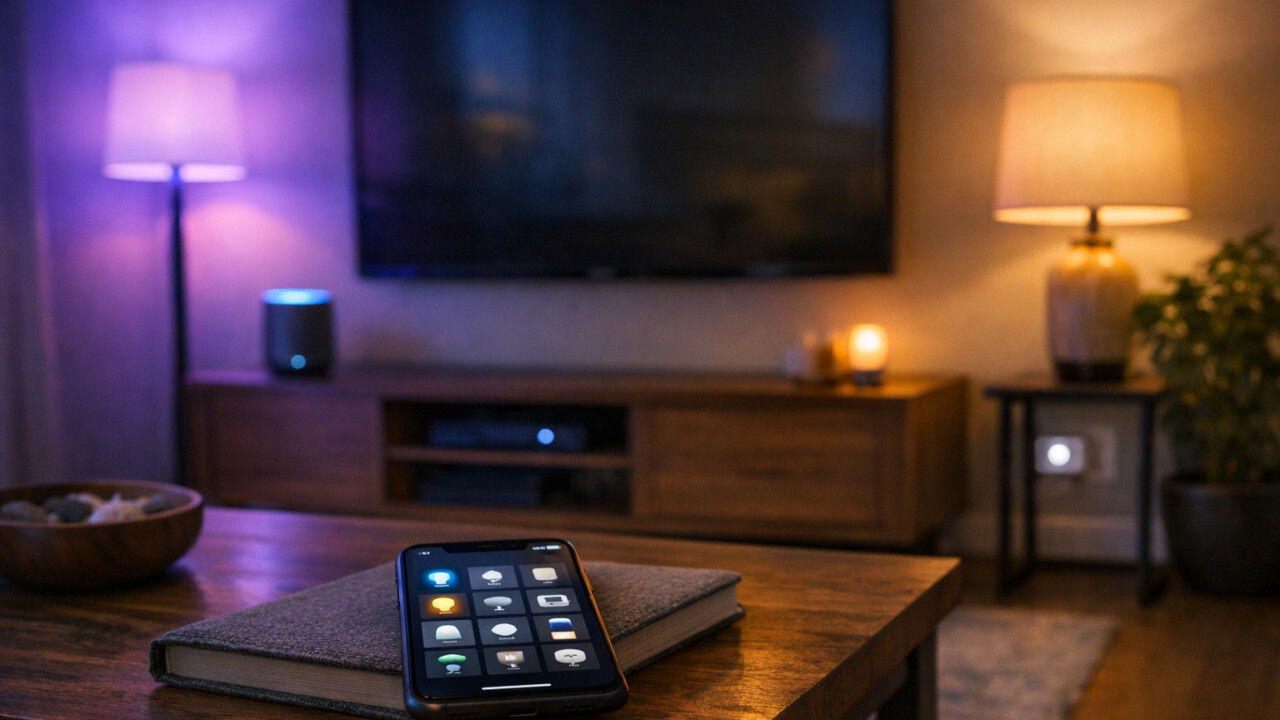
Alexa Routines can handle way more than basic wake-up alarms or timers on your Echo speakers. Inside the Alexa app, you can go to “More” > “Routines” and set triggers based on time, motion sensors, or even when someone presses your Ring Video Doorbell. For example, you can make a “Goodnight” routine that runs at 11:00 p.m., turns off all your smart plugs, locks the front door (if you have a smart lock), and lowers your thermostat. You paid for all those devices already, so letting Alexa run them automatically saves you from tapping five different apps every night.You can also build motion-based routines so your Echo or a connected motion sensor turns on a Philips Hue light when you walk into the hallway after 10:00 p.m. and then shuts it off again after a few minutes. Doorbell triggers are handy too, like having your living room Fire TV or Echo Show pop up a camera feed when the Ring doorbell rings, or flashing a smart light strip in your office so you do not miss packages. These are all in the same “Routines” screen: just choose the trigger (time, smart home device, doorbell press), then add actions like “Smart Home,” “Music,” or “Announcements.”
Google Home Household Routines Work With Presence Sensing
Google Home can use “Presence Sensing” to tell when people come and go, then run automations automatically instead of waiting for voice commands. In the Google Home app, tap “Automations” at the bottom, pick “Household Routines,” then choose “Home” or “Away” and turn on “Use presence sensing.” You can let it use your phone’s location plus supported devices, like Nest thermostats and Nest doorbells, to figure out if anyone is home. This all runs in the Google Home app, so you do not need any extra hubs or services.
Presence-based Household Routines are great for simple stuff like turning off all Philips Hue lights and lowering a Nest Learning Thermostat to Eco when the last person leaves. When the first person comes back, the “Home” routine can turn on a porch light, set your thermostat to 72°F, and start a playlist on a Nest Audio. This saves energy without you thinking about it and cuts down on those “Did I leave the lights on?” moments. Let Google Home do the boring on/off work for you.
Apple Home Automations Are Not the Same as Scenes

Apple Home Automations are different from Scenes because Automations run by themselves based on triggers, while Scenes just set things the way you like when you tap them or ask Siri. A Scene in the Home app is like a preset: “Good Night” might turn off your Philips Hue lights, lock a Schlage Encode smart lock, and lower a HomeKit thermostat, but it only runs when you or Siri start it. An Automation in the Home tab runs that same Scene automatically at 11:30 p.m., or when the last person leaves home, or when a HomePod mini detects motion. To set one up, open the Home app, tap the Automation tab, hit “Add,” pick a trigger like “Time of Day,” “People Arrive/Leave,” or a sensor, then choose your devices or an existing Scene to run.A simple real‑world use is setting an Automation that turns off all lights and plugs when the last iPhone in your household leaves, using “When Nobody is Home” under “People” as the trigger. You can also create an Automation that turns on a porch light Scene when a HomeKit door sensor opens after sunset, or one that pauses HomePod music when you tap a specific NFC tag with your iPhone. This matters because you stop treating your smart home like a bunch of fancy light switches and start letting it handle boring routines on its own. You already paid for HomePods, Apple TVs, and sensors, so letting Automations run your Scenes on a schedule or based on presence gets you more value without buying anything new.
Matter Lets Smart Home Hubs Control More Devices Across Brands

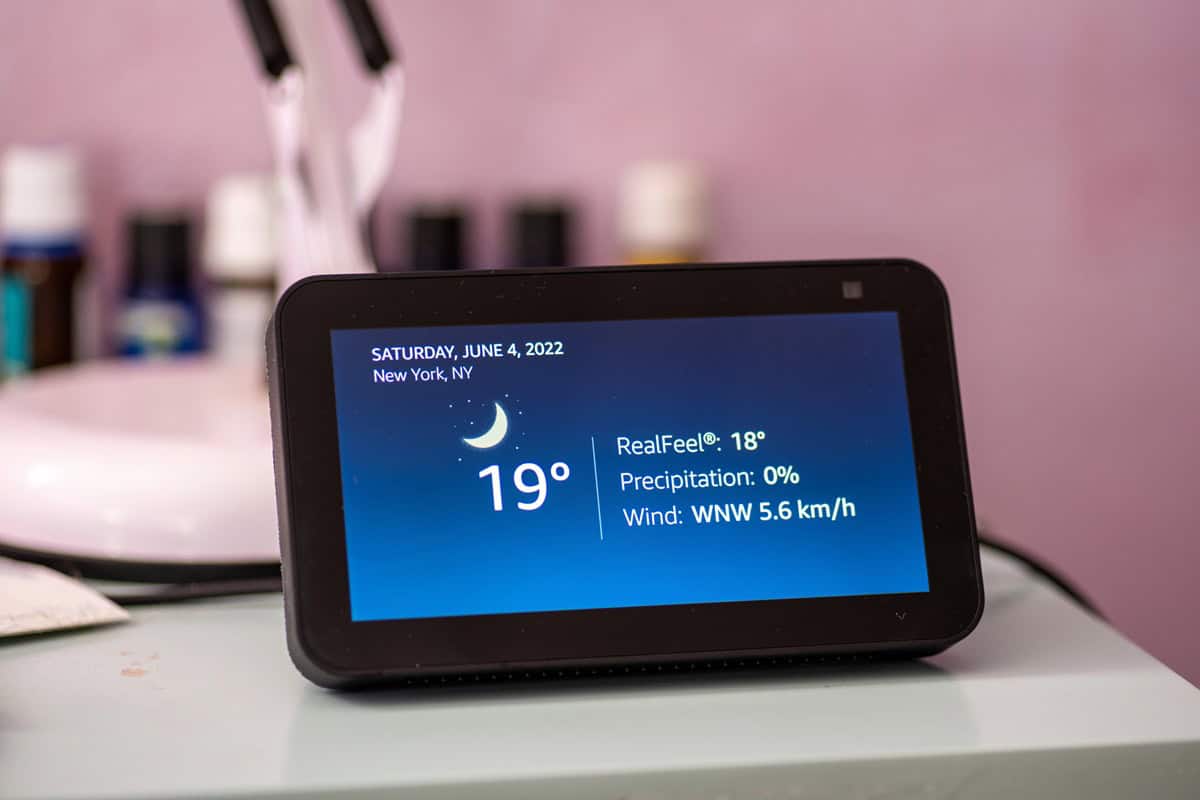
Matter lets compatible smart home hubs control more devices across brands by turning your hub into a kind of “universal remote” for Matter-certified gear. More and more smart home hubs are coming with Matter support by default, like the Google Nest Hub Max or Google Nest Mini. Amazon’s Echo (4th Gen), Echo Pop, Echo Show 8 (2nd Gen or newer), or Echo Show 5 (3rd Gen) also support Matter. So if you have a smart home hub that supports it and a Matter logo on your smart plug, bulb, or sensor box, you can usually add it straight into the hub and add the device, then follow the pairing steps. This is useful if you have, for example, a Nanoleaf Matter bulb normally used with Apple Home and a TP‑Link Kasa Matter plug, but you want one Alexa voice command like “Alexa, goodnight” to turn both off at once.
Your Smart Plug May Already Track Energy Use
Your smart plug probably already tracks energy use right inside the app you used to set it up. Popular options like TP-Link Kasa, Amazon Smart Plug, and Meross plugs have an “Energy” or “Usage” tab that shows real-time watts, daily kWh, and even 30‑day history for each outlet. In the Kasa app, tap the plug, then tap “Energy” at the bottom to see graphs of power use by day and month. On Alexa, if you link a plug with energy monitoring, you can open the Alexa app, tap “Devices,” pick your plug, and look for “Energy Dashboard” to see how much power it pulls over time.
This is handy for spotting power hogs and “vampire” devices without buying a separate energy meter. For example, you can plug in a curling iron, gaming PC, or older washing machine and see exactly how many kWh it burns in a week, then decide if you want to run it less or replace it. Some plugs also let you set auto-off timers based on usage, so a curling iron can shut off after it uses a set amount of energy in a day. Using the built-in energy tracking can help trim your power bill with almost no extra work.
Smart Lights Change Natural Light Color Through the Day
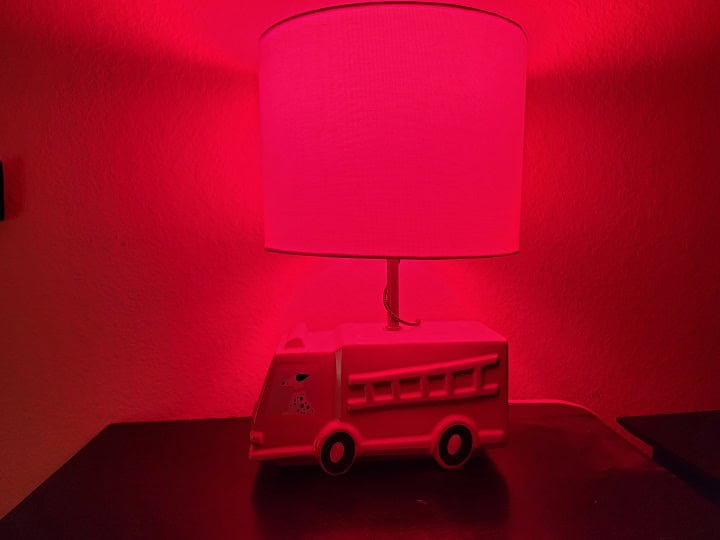
Smart lights these days can do more than provide a vivid splash of color, with most apps giving the ability to change the temperature of the light throughout the day. This can help with mood and help your body’s circadian rhythm, improveing sleep. Philips Hue’s “Natural Light” scene automatically shifts your bulb color temperature through the day, from cool white in the morning to warm amber at night. You set it up in the Philips Hue app by tapping “Automation” or “Routines,” choosing “Natural light,” then picking which rooms and what hours you want it active. The system slowly moves from around 6500K cool light earlier in the day down to warmer tones closer to 2200–2700K in the evening, without you touching a switch. It works with most Hue White ambiance and White and Color Ambiance bulbs connected to a Hue Bridge, so you do not need any extra hardware.
This is handy if you work from home and want bright, cool light at your desk at 9 a.m., then softer light while watching TV at 9 p.m., all from the same bulbs. It can also make bedrooms feel more natural, with a gentle color shift that helps you wake up and wind down instead of blasting the same harsh white all day. Letting Natural Light run in the background makes them feel a lot smarter without any extra effort.
Roku Private Listening Might Be Its Best Hidden Feature
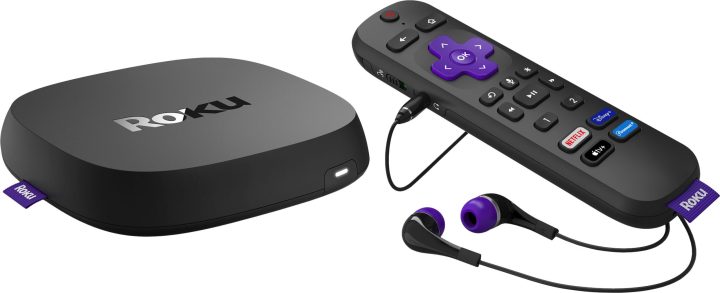
Did you know that you can listen to TV at night without waking up the whole house? Roku Private Listening lets you send all your TV audio straight to your phone or headphones so nobody else hears a thing. On a Roku Streaming Stick 4K or Roku TV, open the Roku app on your iPhone or Android phone, connect to your Roku, then tap the headphone icon on the remote screen to turn on Private Listening. You can use wired headphones plugged into your phone or Bluetooth earbuds paired to your phone, so it works with AirPods, Galaxy Buds, or cheap wired earbuds. This is great for late-night watching when kids are asleep, roommates are studying, or you just want to hear dialogue more clearly without cranking the soundbar.
Your Samsung TV May Already Be a SmartThings Hub
Your Samsung TV may already be a SmartThings hub that talks directly to Zigbee and Thread devices without any extra box. Many 2022 and newer Samsung QLED and Neo QLED TVs, plus some 2023 OLED models, have a built-in SmartThings Hub feature that lets you connect sensors, smart plugs, and bulbs right through the TV. To check, grab your phone, open the SmartThings app, tap Devices, pick your TV, tap the three-dot menu, and look for an option like “Hub” or “Set up SmartThings Hub.” If you see it, you’ve basically got a free Zigbee/Thread bridge sitting under your screen.
This is handy if you want to add things like a Zigbee door sensor, Aqara motion sensor, or smart plug without buying a separate SmartThings Hub or Matter bridge. For example, you can connect a motion sensor in your hallway to the TV’s SmartThings hub, then create an automation in the SmartThings app that turns on your Samsung smart bulbs or sends a phone notification when it detects movement at night. The TV does not have to be on a channel for this to work, it just needs to be powered and on the same Wi‑Fi network as your phone. Using your TV as a smart home hub is a great way to save you $60–$100 by not buying a new hub.
Echo Do Not Disturb Can Stop Late Night Interruptions

Echo Do Not Disturb can keep your bedroom quiet by blocking late‑night calls, announcements, and Alexa notifications during set hours. On your phone, open the Alexa app, tap Devices, pick your Echo, then tap Do Not Disturb and set a schedule, like 10:30 p.m. to 7:00 a.m. You can still allow important stuff through, like calls from your Household or specific routines, by going to Settings > Communications and tweaking who can reach you.
This is handy if you use an Echo Reminder for things like taking meds or checking the laundry and those alerts keep popping up at midnight on every Echo in the house. With Do Not Disturb schedules, your kitchen Echo can still announce reminders while the Echo Dot on your nightstand stays silent all night. Using this setting turns your Echo from a sleep wrecker into something that quietly waits until morning.
Summary
Most smart homes already have unused features that can save you time, cut noise, and even lower your power bill if you turn them on. Your next step is simple: open the Alexa, Google Home, Apple Home, Philips Hue, Roku, or SmartThings app and tap into the Routines, Automations, Energy, or Hub sections you usually skip. Turn on just one or two things, like a bedtime routine, presence-based “Away” mode, Hue Natural Light, Roku Private Listening, or Echo Do Not Disturb, and live with it for a week. Once that feels normal, add one more automation so your smart home handles more of the boring stuff on its own.