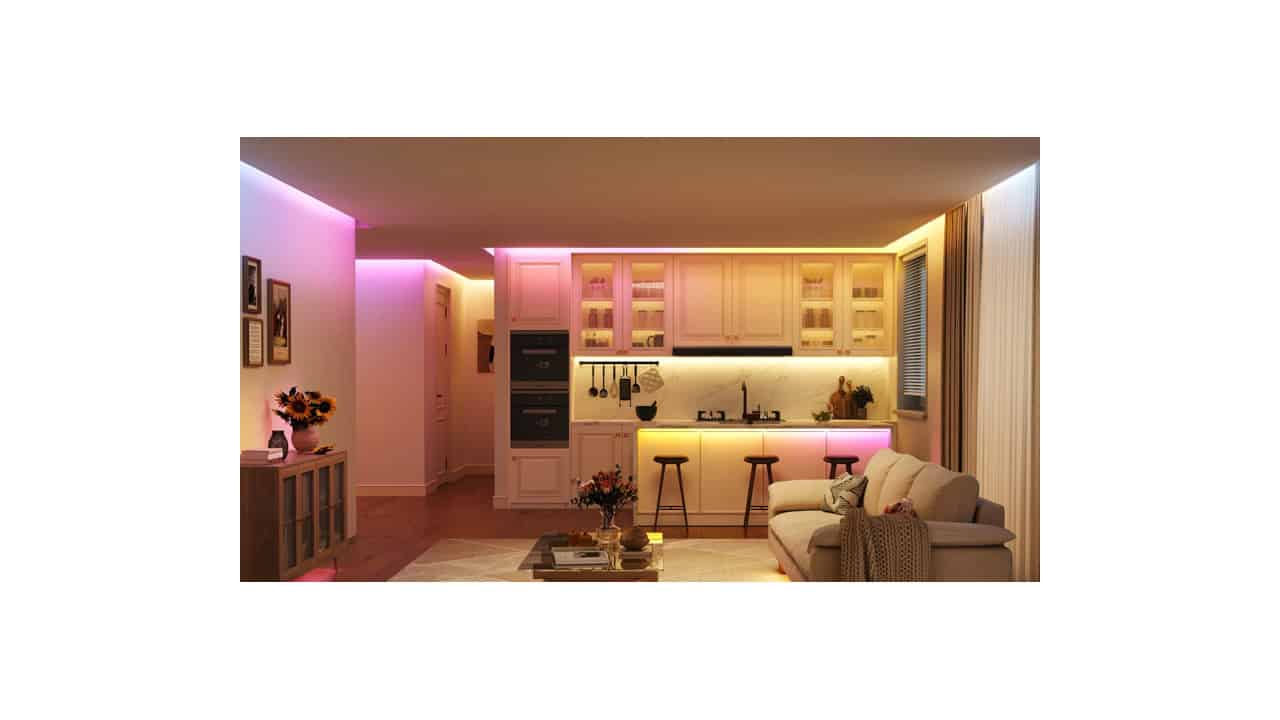
Govee’s new Strip Light 2 is built to fit into more smart homes, with Matter support, Wi‑Fi, improved white light, and a tougher coated strip. It replaces the older RGBIC LED Strip Light and sits below the Strip Light 2 Pro, but still brings most of Govee’s newer features. For Apple Home users, the big change is that you no longer have to rely on Govee’s app alone or workarounds to get it into your smart home. The strip now connects over both Wi‑Fi and Bluetooth and can join Apple Home, Amazon Alexa, and Google Home through Matter.
The move from Bluetooth‑only control to Wi‑Fi plus Bluetooth makes day‑to‑day use a lot smoother. Wi‑Fi helps with faster response, better reliability, and control from outside your home when you are away. Matter adds a shared standard that lets the same light strip show up in different smart home apps at the same time. You can control basic stuff like power, brightness, and color from your platform of choice, while still using Govee’s app for the advanced effects.
On the lighting side, Govee is using its LuminBlend+ color tech with RGBWWIC 5‑in‑1 LEDs to push color and white light performance beyond the earlier strip. The strip can output around 16 million colors and supports segmented control, so different sections of the strip can glow in different colors or run patterns along the length. That setup helps with smooth gradients, chase effects, and more detailed animations. It is designed for people who want decorative bias lighting behind a TV or monitor but also want proper room lighting when needed.
Dedicated white LEDs are a key change because they improve how “real” the white light looks compared to mixing colors to fake white. You can shift from a warm, yellowish tone for relaxing in the evening to a cooler, bluish white for working, studying, or task lighting. That range makes the Strip Light 2 more useful as a primary or secondary light in a room instead of just a color accent. The protective coating on the strip adds some durability and makes it feel less fragile when you are pressing it into corners, under cabinets, or around a desk.
The strip can be cut to fit, which helps if you are running it under kitchen cabinets, along shelves, or behind a TV and do not want extra length bunched up somewhere. After you trim the strip at the marked cut points, you can go into the Govee Home app and calibrate the new length so the effects and segment counts still match what you see in real life. That calibration step helps the animated scenes and color waves line up with the actual end of the strip instead of acting like it is still full length. It gives you more freedom to use it in tight or custom installs without messing up the effects.
Inside the Govee Home app, the Strip Light 2 taps into more than 100 preset scenes, covering things like movies, gaming, music, holidays, and general mood lighting. You can also use Govee’s AI Lighting Bot, which creates custom effects based on prompts or simple choices, on top of the usual DIY tools for building your own color patterns. These extras sit outside of Matter and are handled only through the Govee app, which is normal for branded features that go beyond basic smart home controls. Matter is there to manage the common actions like on/off, color, and brightness inside the main smart home apps.
Here is how the Matter setup works in practice, and what you need to get started. First, you need a Matter‑capable controller or hub in the platform you plan to use: for Apple Home, an iPhone running iOS 18 or later can add and control it on its own, though a HomePod or Apple TV home hub is what you need for automations and control from away; for Amazon, a supported Echo device that can act as a Matter controller; for Google, a supported Matter hub such as a Nest Hub, the Google Home Speaker, or a Nest Wifi Pro router. You also need a 2.4 GHz Wi‑Fi network at home, since the Strip Light 2 uses both Wi‑Fi and Bluetooth during setup, and the Govee Home app installed on your phone.
To add the strip, you power it up, open the Govee Home app, and follow the on‑screen steps to connect it to your Wi‑Fi and update any firmware. From there, you can scan the Matter QR code on the controller or in the app using your platform of choice: in the Apple Home app, tap to add an accessory and scan the Matter code; in the Alexa app, add a new device and choose the Matter path; in Google Home, add a new device and select the Matter option. Once the strip shows up, you can rename it, assign it to a room, and start controlling it with Siri, Alexa, or Gemini for Home. Govee’s Wi‑Fi plus Bluetooth setup means the initial pairing is quick over Bluetooth, but everyday control goes over Wi‑Fi through your Matter hub, so you get a more stable connection while still having access to Govee’s advanced scenes when you open its own app.
View the original press release.