Buying Zigbee devices comes down to understanding a few specific details before you spend a single dollar. From making sure your new bulbs work with you smart home hub to knowing which devices act as repeaters, a little knowledge up front can save you money and frustration. Keep reading to learn what to check before you click “buy”.
Check Hub Compatibility First
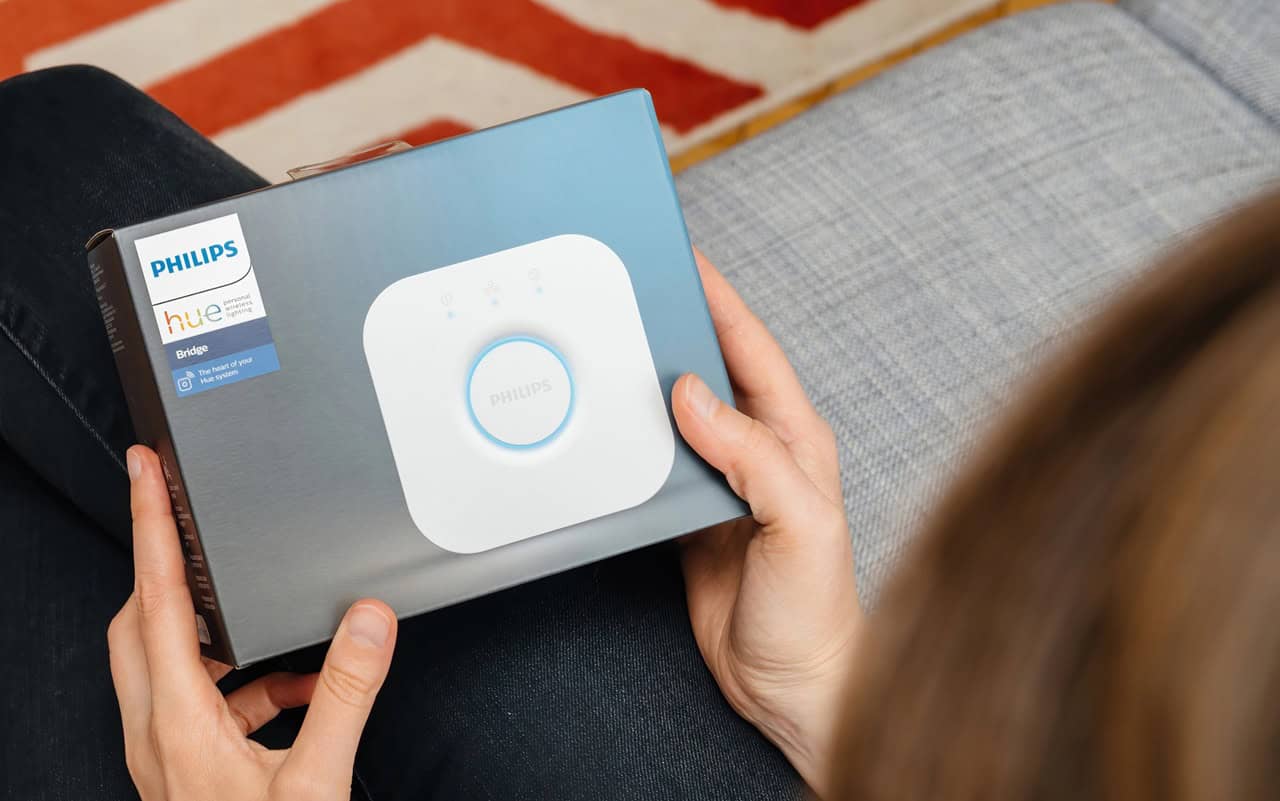
Check hub compatibility first, because Zigbee bulbs, sensors, and plugs may have features that are restricted to specific smart home hubs. Specifically, the new Philips Hue MotionAware detection comes to mind here. Before you buy a device like a Philips Hue bulb, Aqara smart switch, or Sonoff plug, check whether your hub (such as Amazon Echo with built‑in Zigbee, SmartThings, or Hubitat Elevation) officially lists that product or brand. Look for details like “Zigbee 3.0 certified” on both the hub and device, and watch for notes about supported profiles such as Zigbee Home Automation (ZHA). If you mix older Zigbee devices with a newer Zigbee 3.0 hub, expect some features like power monitoring, scenes, or manufacturer‑specific options to be missing or limited.
Confirm the Zigbee Version
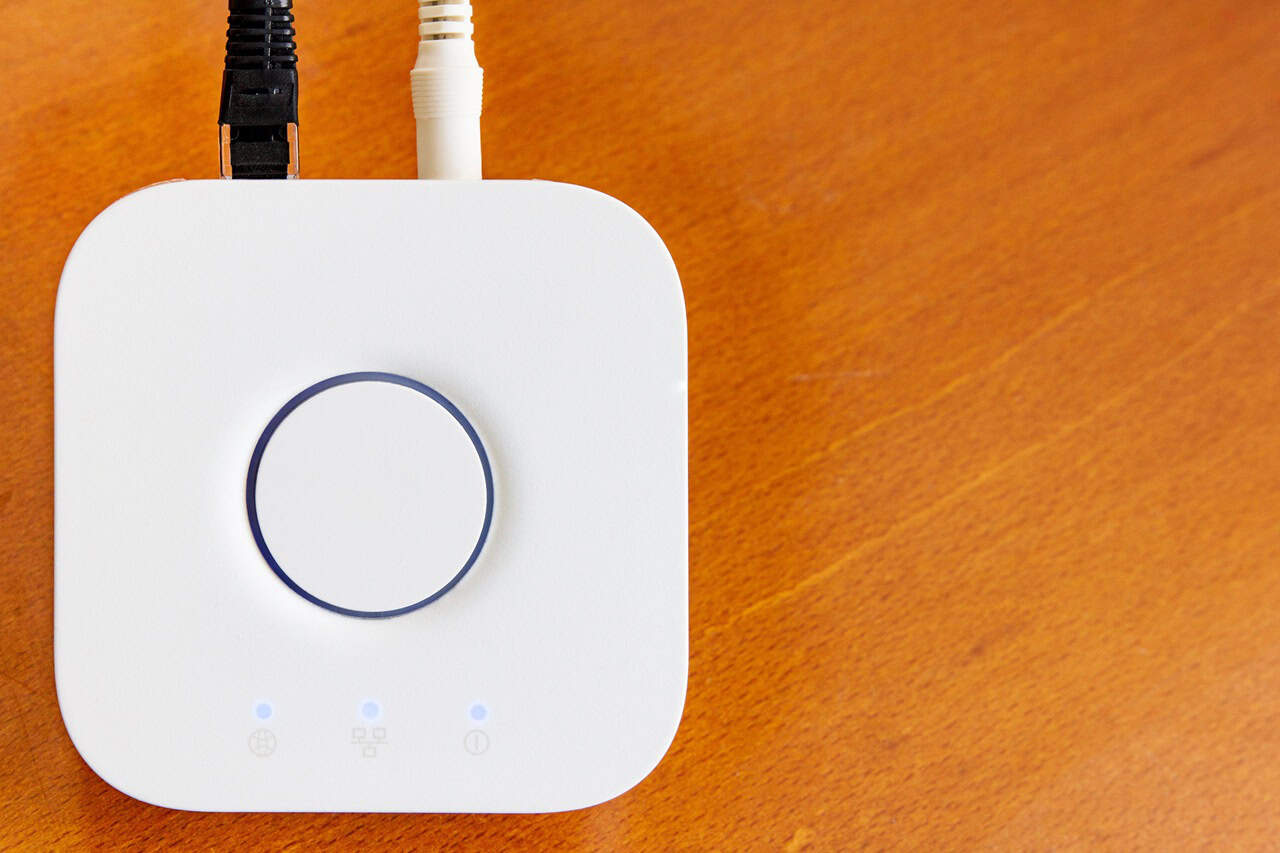
Confirm the Zigbee version on any device before you buy it, because Zigbee 3.0 products do not always behave the same as older Zigbee Home Automation (ZHA 1.2) or Zigbee Light Link (ZLL) gear. Many modern hubs like Amazon Echo with built‑in Zigbee, Aeotec Smart Home Hub (SmartThings), and Hubitat Elevation focus on Zigbee 3.0 and ZHA, so a random ZLL‑only bulb from years ago may pair with limited features or not at all. Check the spec sheet or product page for clear wording like “Zigbee 3.0 certified” or “ZHA 1.2” instead of vague “Zigbee compatible” claims. If you already own older devices, look at your hub’s documentation to see which Zigbee stacks it supports before you start mixing generations.
Watch for Ecosystem Lock-In

Ecosystem lock-in with Zigbee happens when your devices only work well with one brand’s hub or app, like a Philips Hue Bridge or an Amazon Echo with built-in Zigbee. Some Zigbee bulbs or sensors might pair with many hubs, but features such as color scenes, power loss recovery, or firmware updates may only work when you use the maker’s own hub. Before you buy, check if the product is certified for “Works with Alexa,” “SmartThings Compatible,” or “Hue Compatible” instead of just saying “Zigbee.” If you want to mix brands, look at more open hubs like Home Assistant Yellow, Hubitat Elevation, or Aeotec Smart Home Hub so you are not stuck rebuying everything if you switch platforms later.
Check How Firmware Updates Work
Firmware updates on Zigbee devices can be tricky, so you need to know exactly how each brand updates and for how long they promise support. Some devices, like Philips Hue bulbs and the Hue Bridge, get automatic updates through the official app, while others rely on your Zigbee hub, such as Home Assistant with ZHA or Zigbee2MQTT, to push new firmware. Many cheaper sensors and plugs never get updates at all, or require manual flashing, which most people do not want to deal with. Before you buy, check if the vendor offers over‑the‑air (OTA) updates, how often they release fixes, and whether your chosen hub (like SmartThings, Amazon Echo with Zigbee, or Home Assistant) can actually install them.
Know the Difference Between Repeaters and End Devices
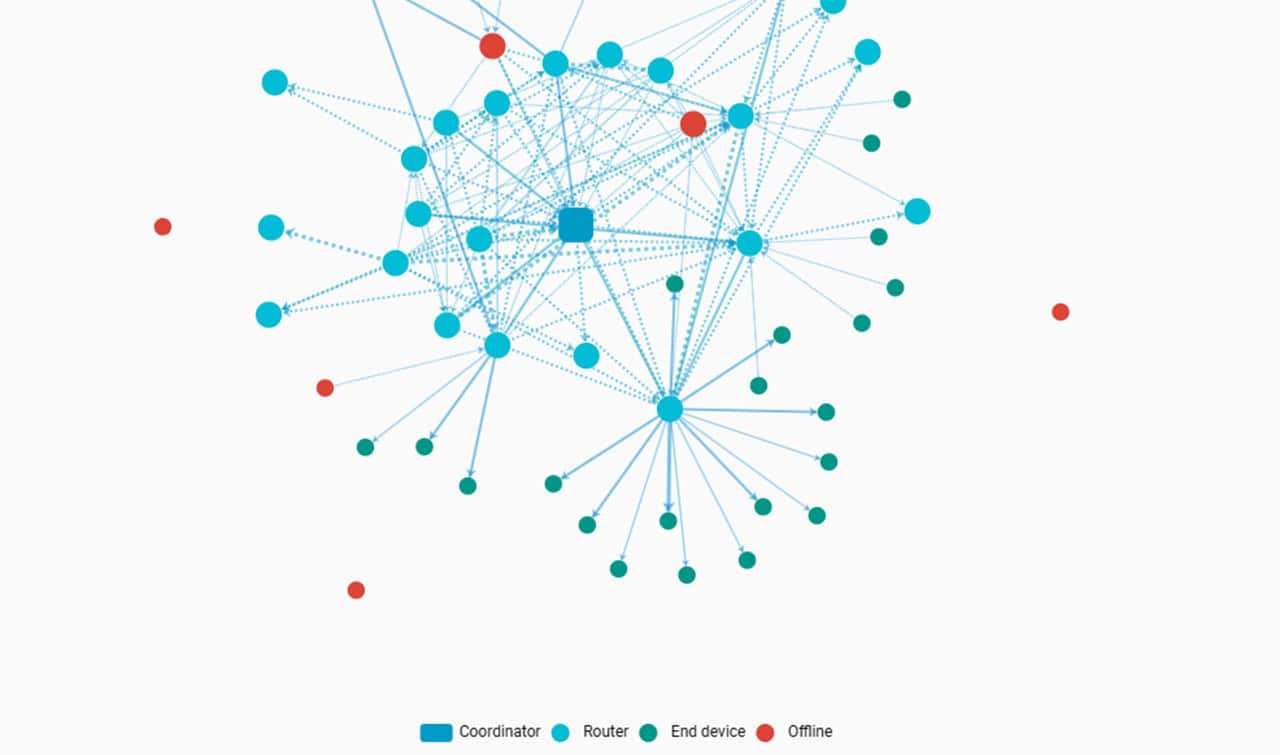
Know the difference between Zigbee repeaters and end devices before you start buying bulbs and sensors. Zigbee repeaters (also called routers) are always-on devices like mains-powered smart plugs or light switches, and they pass messages along to extend your mesh network. End devices are usually battery-powered sensors or buttons, like the Aqara Door and Window Sensor or Sonoff Temperature Sensors, and they connect through repeaters or the hub but do not pass traffic for other gadgets. If you only buy end devices and forget about repeaters, you can end up with Zigbee gear that randomly drops offline because your mesh is too weak.
Battery Devices Act Differently Than Plug-In Devices

Battery-powered Zigbee devices behave very differently from plug-in Zigbee devices in how they talk to your hub and your network. A battery sensor like the Aqara Door and Window Sensor or Sonoff SNZB-02 temperature sensor usually acts as an “end device”, which means it sleeps often to save power and only checks in every few minutes or when something changes. This can cause delays in statuses, so it something to be aware of. End devices also don’t route traffic over the mesh network, so do not add to the stability of your Zigbee network.
Your Mesh Gets Better With Mains-Powered Devices
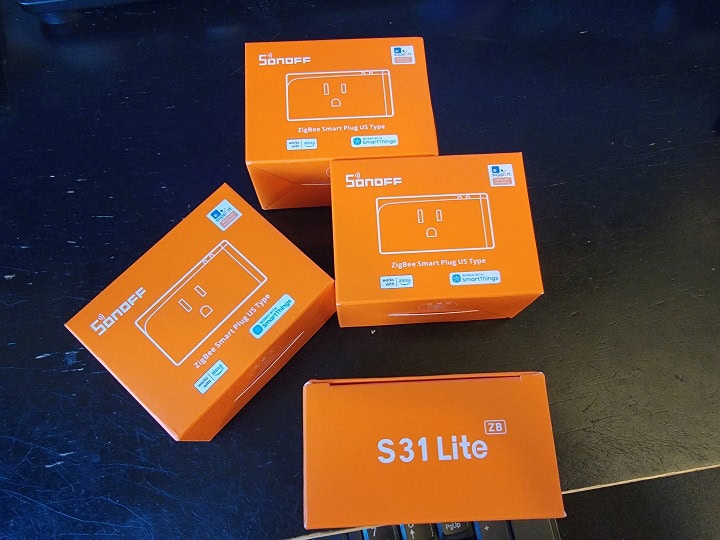
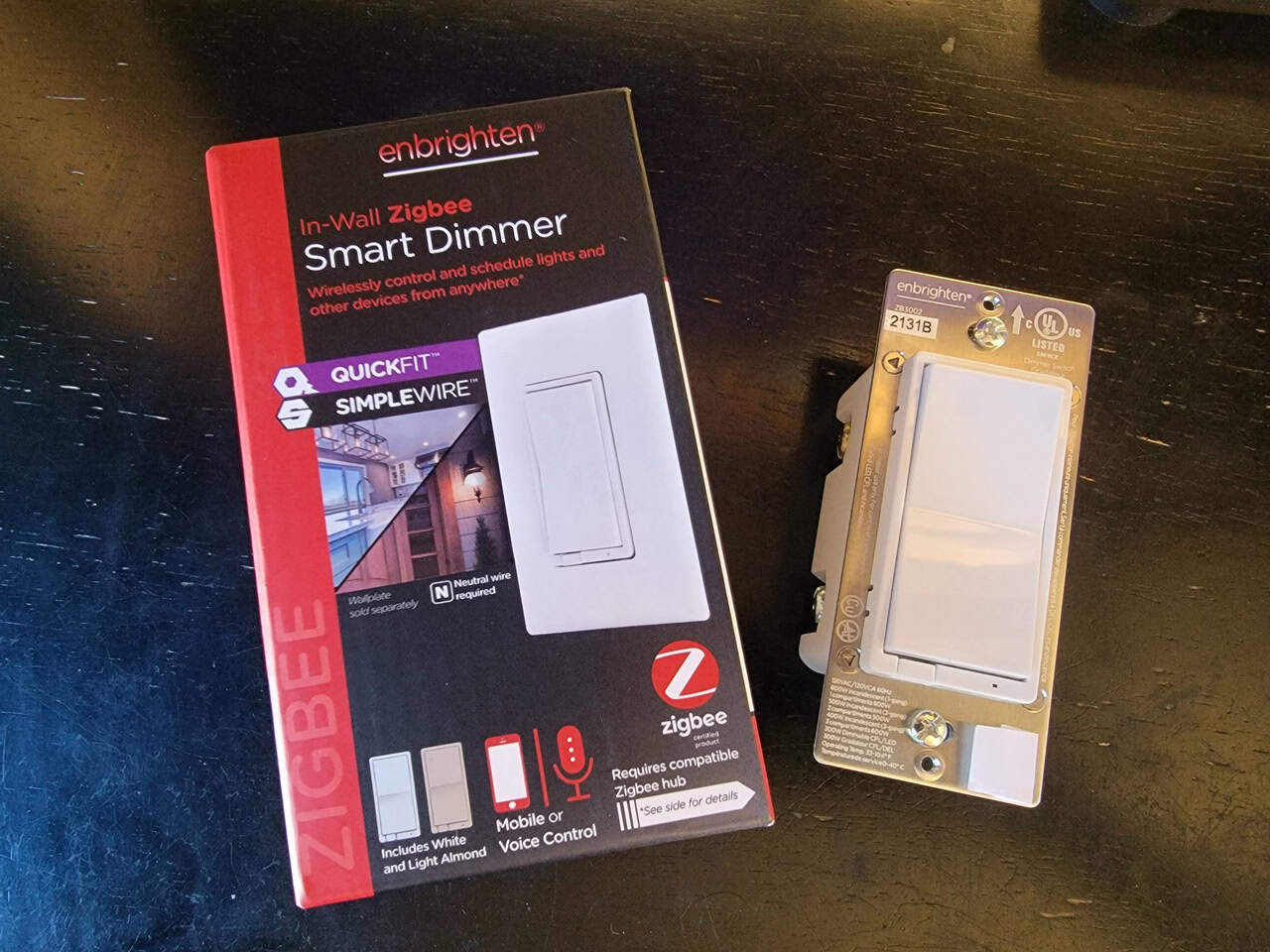
Your Zigbee mesh gets stronger and more reliable every time you add mains‑powered devices like a Sonoff smart plug or an Aqara wall switch. Battery devices such as motion sensors and contact sensors are usually “end devices,” which mostly talk only to their parent and do not repeat signals for others. In contrast, mains‑powered Zigbee bulbs, plugs, and in‑wall switches often act as repeaters, passing along traffic from gear that is farther away from your hub. Seriously, when you plan a setup, think about spacing a few repeater devices around your home so your Zigbee mesh network can reach everything.
Look at Range Claims With Caution
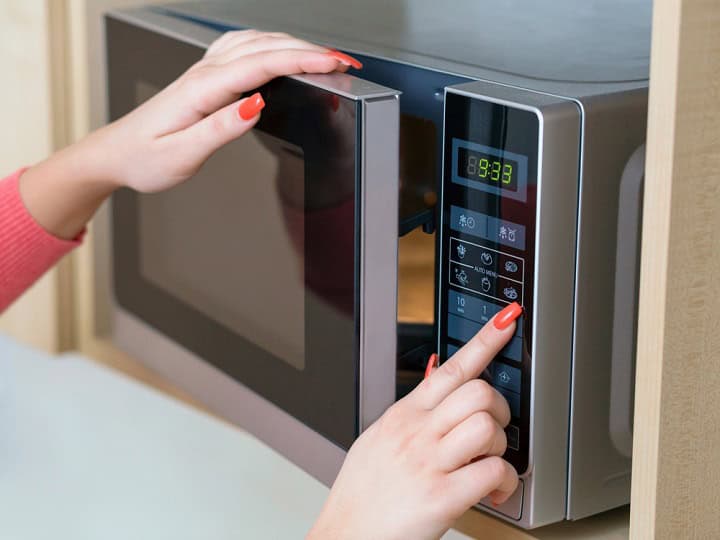
Range claims on Zigbee product pages are usually “best case” numbers, not what you will see in a real house. That “up to 100 meters” spec you see on devices is measured in open air, not through drywall, brick, or metal appliances. Zigbee range depends heavily on your home layout, 2.4 GHz Wi‑Fi interference, and how many Zigbee routers you have in your mesh. Plan for much shorter real‑world range than the box says. You’d be surprised by how many common home objects can reduce network signal range.
Matter and Thread Are Not the Same as Zigbee
Matter and Thread are not the same as Zigbee, and you cannot assume a Matter or Thread logo means a device will join your Zigbee network. Zigbee is its own mesh protocol and needs a Zigbee coordinator or hub like the Amazon Echo with built-in Zigbee, Aeotec Smart Home Hub (SmartThings), or a USB stick like ConBee II or Sonoff Zigbee 3.0. Matter usually runs over Wi‑Fi or Thread, while Zigbee 3.0 uses radios certified under specs such as Zigbee PRO 2017. Before you buy, read the product page carefully and look for the word “Zigbee” and a Zigbee 3.0 logo, not just “Matter‑ready” or “Thread‑compatible”, so you do not end up with smart plugs and sensors that cannot pair with your existing Zigbee hub.
Security and Support Matter After Purchase

Security and ongoing support are just as important as specs when you buy Zigbee devices. Look for brands that push firmware updates through your hub, like Philips Hue bulbs receiving security fixes through the Hue Bridge or Aqara sensors updating through a Zigbee 3.0 hub. Check if the manufacturer has a clear support page, a history of updates, and contact options like email or chat. If the brand stops updating its Zigbee devices or its app, you could be stuck with unpatched gear that you do not want on your home network.
Cheap Devices Can Cost More Later

Cheap Zigbee devices can end up costing more over time through extra hubs, repeaters, and replacements. A $10 no‑name Zigbee plug you find on Amazon might not play nice with other devices, or might not do everything it claims to. Cheaper bulbs and sensors also tend to ship with older Zigbee 1.2 firmware, while better brands like Philips Hue and Aqara usually support Zigbee 3.0 and receive updates that keep them working with new hubs.
Low‑cost gear can also hurt your network if they are poor repeaters instead of stable routers. For example, a bargain Zigbee outlet that constantly drops off the network can break the connection for your end devices like battery‑powered motion sensors and door sensors that route through it. Spending a little more on trusted Zigbee plugs and bulbs from brands like Ikea Tradfri, SONOFF, or Third Reality usually gives you better repeaters, longer support, and fewer headaches later.
Plan Your Setup Before You Buy

Planning your Zigbee setup before you buy means deciding on your hub, device locations, and network layout before you add anything to your cart. Start by picking your main hub, like an Amazon Echo with built-in Zigbee, a Samsung SmartThings hub, or a dedicated Zigbee USB stick for Home Assistant, and then make sure every device you buy lists that platform as compatible. Think about where you need always‑powered devices like Zigbee smart plugs or in‑wall switches, since those act as repeaters, and where battery sensors and buttons will sit as end devices on the edge of your network. Check the Zigbee version on the box or listing, such as “Zigbee 3.0”, and decide if you want everything on the same standard so pairing and features stay consistent across your home.
Summary
The single most important fact is that Zigbee devices only work reliably when they match your hub’s Zigbee version, profile, and “works with” list. Before you buy anything, double‑check the product page for “Zigbee 3.0”, confirm your hub officially supports that brand and model, and avoid relying on vague “Zigbee compatible” claims. Then plan a simple map of your home, add some mains‑powered plugs or switches as repeaters, and fill in the gaps with trusted battery sensors so your mesh stays stable as you expand.