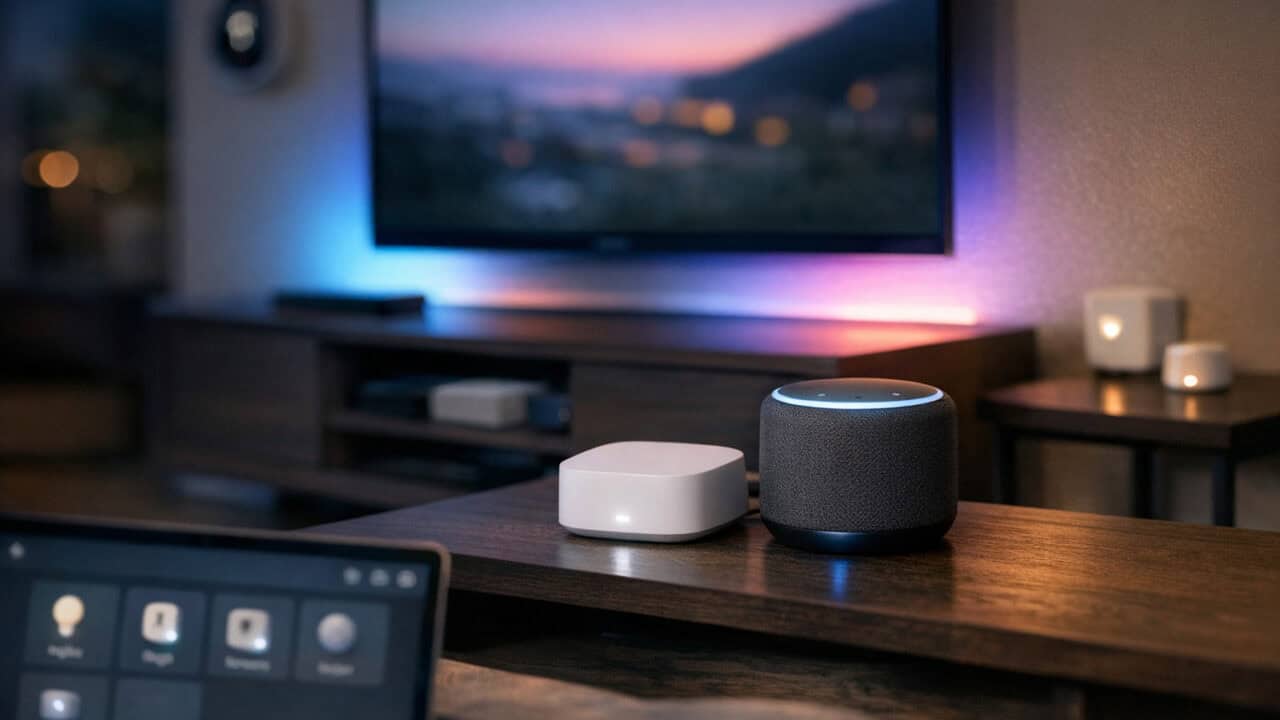
Setting up Matter devices in your existing smart home mostly comes down to checking what you already own, deciding if you need a hub or border router, and walking through a short pairing process. Many newer products from Apple, Amazon, Google, and Samsung support Matter, so you might be closer than you think. You may only need one or two new pieces of gear instead of replacing everything. The goal is to let your different brands talk to each other through one shared standard, instead of living in separate apps. The rest of this guide walks through what Matter is, how to check your current gear, when you need hubs, how to add your first device, what to do when pairing fails, a real multiroom example, and what to upgrade next so you do not have to rip out your current setup.
What Matter Is in Plain English

Matter is a shared smart‑home standard that lets devices from brands like Apple, Google, Amazon, and Samsung talk to each other over the same basic language. Instead of every gadget needing its own app and ecosystem, a Matter smart plug or light bulb can be controlled from Apple Home on an iPhone, Google Home on a Pixel, or Alexa on an Echo, all at the same time. Matter runs over your existing home network using Wi‑Fi or Thread. If you already own an Amazon Echo (4th Gen), Google Nest Hub (2nd Gen), or Apple TV 4K, you probably already have a Matter controller in your house that can manage compatible gear.
How to Check if Your Current Smart Home Gear Works With Matter
Most current smart home gear only works with Matter if the brand has pushed a firmware update that adds support. Start by opening each platform app you already use: Alexa, Google Home, Apple Home, Samsung SmartThings, Philips Hue, or Home Assistant. In the Alexa app, for example, go to Devices → your device → Settings and look for “Matter” in the protocol details or a “Works with Matter” badge. In Apple Home on iOS 16.1 or later, Matter accessories show up with a “Matter” label in the device details screen. You should also check the hardware version and firmware number against the brand’s support page. Philips Hue, for example, only supports Matter through the square Hue Bridge (model 2.1) on newer firmware, not old round hubs. Many Wi‑Fi plugs and bulbs from TP‑Link Kasa or Meross need a specific firmware build before they can join Matter. If you are shopping for new gear, look for boxes that literally say “Matter” or “Works with Apple Home, Alexa, Google Home, and SmartThings over Matter”.
When You Need a Hub, Bridge, or Thread Border Router

You need a hub, bridge, or Thread border router for Matter when your phone or speaker cannot talk to the new device over the right radio or protocol by itself. Matter works over Wi‑Fi, Ethernet, and Thread, but your old smart plug or bulb might only speak Zigbee or Z‑Wave. In that case, it will still rely on a bridge, like the Philips Hue Bridge or an Aqara Hub, which then exposes the bulbs or sensors as Matter devices to your smart home controller. Your phone is not enough if the device only supports Thread and you have no Thread border router on your network.
You usually do not need a new box if you already own a recent smart speaker or hub that doubles as a Matter controller and Thread border router. That means they bridge low‑power Thread devices onto your Wi‑Fi network so your phone can see them. If you have only older gear, like a first‑gen Echo Dot and no Apple TV or Nest Hub, you will likely need to add at least one newer hub or speaker before Thread‑only Matter devices will work.
How to Add Your First Matter Device
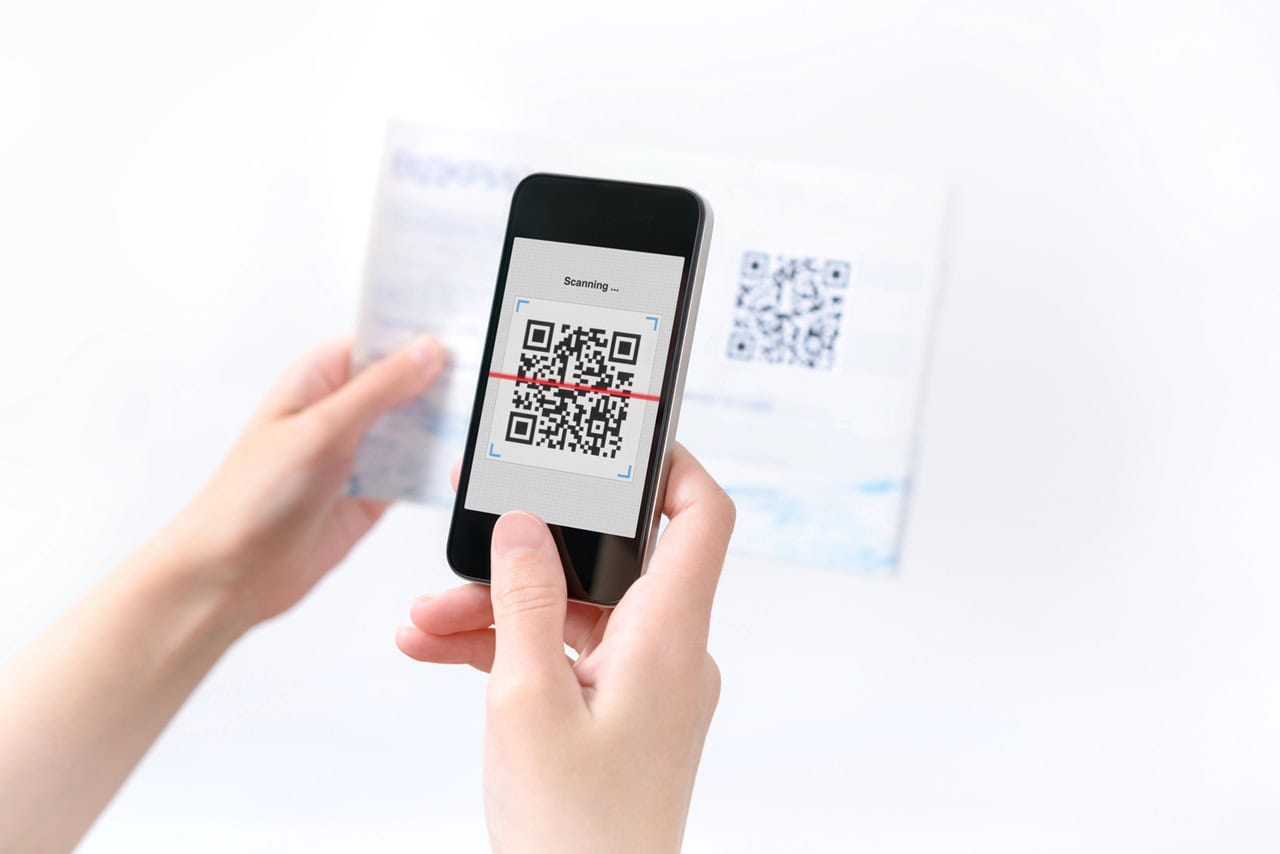
Adding your first Matter device is mostly about scanning the QR code in the right app and letting your existing ecosystem handle the rest. Start by picking a simple device like a Matter smart plug, since plugs are easy to move around and test. Make sure your phone, Wi‑Fi router, and main smart-home app are all on the same 2.4 GHz/5 GHz home network, and update the app to the latest version. Have your Matter controller ready, since it needs to be online for pairing to work.
To actually add the device, open your main smart-home app and look for “Add device” or the Matter logo, then scan the Matter QR code printed on the device or in the box. Let the app walk through naming the device (for example “Office Plug”) and assigning it to a room. Once it shows up, test it right away with a voice command like “Alexa, turn off Office Plug” or a tap in the app to confirm control works. If you see delays or drops, move the plug closer to your router or controller and try again before you go buy more Matter gear.
How to Fix the Most Common Matter Pairing Problems

Fixing the most common Matter pairing problems usually comes down to checking your network, your app, and the tiny details on the device label. Start with the basics: make sure your phone, your Matter device, and your main controller are all on the same 2.4 GHz or dual‑band Wi‑Fi network. If the Matter QR code or numeric setup code is not working, try the other option shown in the app, like “Set up without scanning,” and double‑check you are using the right platform app that the device packaging lists. Many plug‑in devices like smart plugs or bulbs need a factory reset before pairing if they were tested at the factory or returned by another buyer.
Wi‑Fi and Thread confusion is another common headache. If the app keeps timing out, move your phone and the device closer to your Thread border router and power‑cycle both the router and the device. When Matter devices disappear after pairing, check for firmware updates in the manufacturer app first, then in your platform app; a lot of early Matter bugs are fixed by updates. If you still cannot pair, temporarily disable any VPN on your phone, reboot your main router, and try pairing again while standing in the same room as your Matter controller.
A Real Multi-Room Matter Setup for the Living Room, Kitchen, and Bedroom

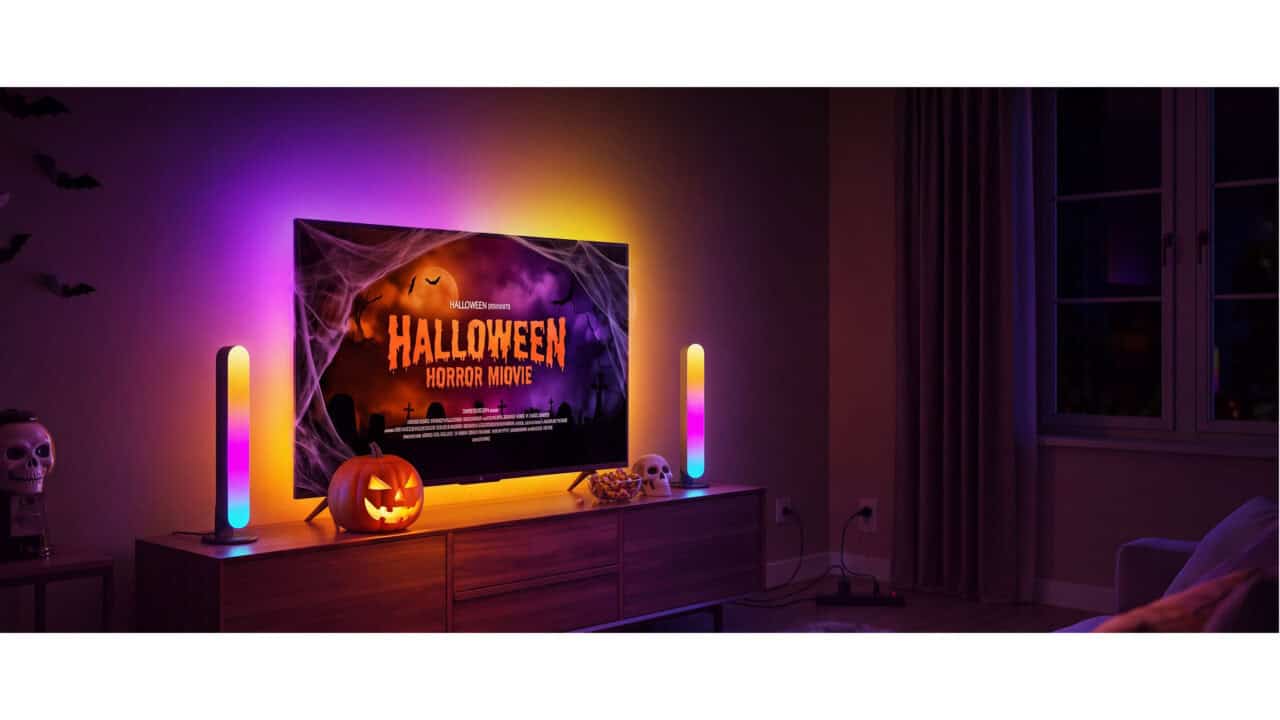
Matter devices can run a real multiroom setup by letting your living room TV, kitchen lights, and bedroom sensors talk to each other through one shared standard instead of separate ecosystems. In a living room, that can look like a Samsung TV with Matter support controlling a light strip behind the TV and a smart plug on a floor lamp, all visible inside one app like Apple Home or Google Home. The TV can expose basic controls, while your phone or a smart display handles scenes like “Movie Night” that dim the lamp and light strip at the same time. For someone starting from scratch, a smart bulb or strip is a simple way to upgrade the room without changing your current TV.
In the kitchen, Matter-ready lights can show up alongside your living room gear, even if you also use Alexa or Google Assistant. You can set a “Cooking” scene that turns the kitchen cans to 100% cool white while leaving the living room dim, all triggered from one app or a voice command. In the bedroom, a Matter motion sensor can sit by the door and trigger low brightness lights after 10 p.m., instead of blasting full power when someone walks in at night. Once everything is paired, you end up with simple rules like “if the presence detector detects motion after 10 p.m., turn on the lights to 20%” that run across rooms without caring which brand made each device.
What to Upgrade Next After Matter Is Working
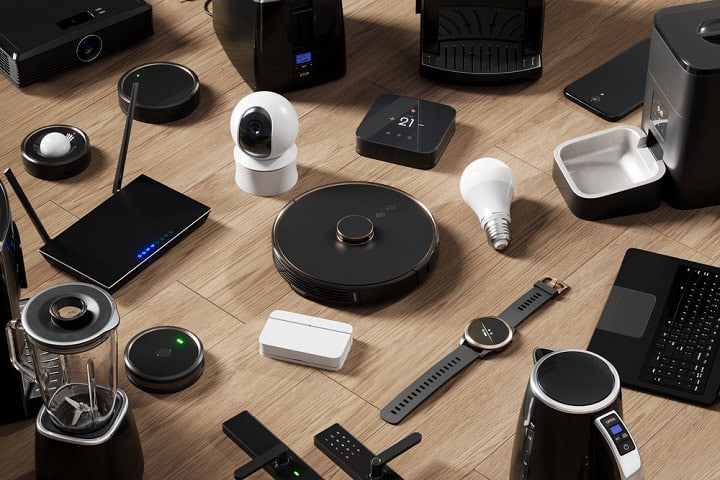
After Matter is working, what to upgrade next mostly comes down to replacing old one‑brand gear with devices that speak Matter over Wi‑Fi or Thread. The smartest first move is usually your main lights and plugs, because they touch almost every routine. For example, swapping older Philips Hue-only bulbs in key rooms for Matter bulbs or smart plugs lets your automations run directly over Matter instead of relying on brand bridges. That cuts down on app juggling and keeps your routines working if you ever switch from Alexa to Google Home or Apple Home.
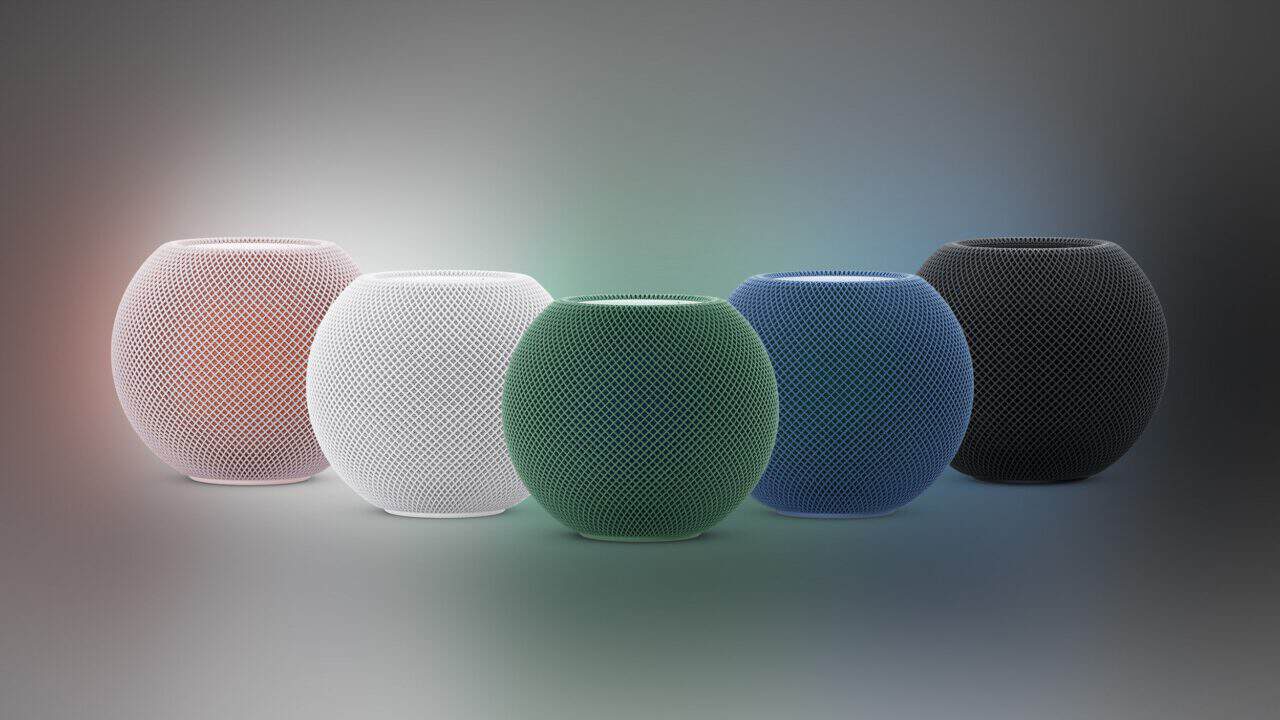
After lights and plugs, the next upgrades to look at are sensors, buttons, and your main smart speaker or display. A Thread-capable sensor like the Aqara Motion and Light Sensor P2 gives your home better, faster triggers for things like “turn on hallway lights when motion is detected after 10 p.m.” Replacing one older hub-only speaker with a Matter controller that also acts as a Thread border router, such as an Apple HomePod mini or a Nest Hub, can make future Matter devices pair faster and stay online more reliably. Over a few upgrades, your home shifts from “a bunch of brand islands” to one shared Matter network that is easier to manage.
Summary
The most important fact about Matter is that your existing smart home devices might already support it with a firmware update. Before you buy anything new, open your Alexa, Google Home, Apple Home, or SmartThings app and confirm which speakers, hubs, and bridges already support Matter and Thread. Then start small with one Matter plug or bulb, pair it using the Matter code in your main app, and test it for a few days in different rooms. Once that feels solid, begin replacing older, one‑brand gear with Matter lights, plugs, and sensors so everything can live in the same shared system.