If you use Blink for home security and you have Alexa devices around your house, you might be wondering if they can work together or if they are two separate systems that do their own thing. A lot of people want to be able to say a simple voice command and see their camera feed, hear a doorbell alert, or arm their system without grabbing their phone every time.This post walks through how Blink and Alexa work together, what gear you need on each side, and how to link everything inside the Alexa app. You will see how to add your Blink cameras and doorbells to Alexa routines, how to pull up live video on an Echo Show, and how to set up doorbell announcements so you actually hear when someone is at your door. There is also a section on common problems, like when Alexa will not find your Blink devices, when cameras stop responding, or when video and sound on Echo Show do not look or sound right, along with simple fixes you can try.If you are trying to decide whether to connect your Blink system to Alexa, or you tried once and ran into issues, this guide walks through the full setup and everyday use in plain steps so you can see what to expect before you spend more time on it.
How to Connect Blink to Alexa
To connect Blink to Alexa, you need a compatible Blink system and an Alexa device that supports video or voice control. Most Blink cameras and doorbells work with Alexa as long as they are set up in the Blink app and linked to an active Blink account. On the Alexa side, common devices that work with Blink include Echo Show models, Fire TV devices, and Echo smart speakers. A stable Wi-Fi network and the latest versions of the Blink and Alexa apps are also needed.
To link Blink to Alexa, open the Alexa app on your phone and sign in to your Amazon account. Tap + button to look for the Blink SmartHome app and select it. A Blink login screen will appear. Sign in with the same Blink account you used in the Blink app, then follow the prompts to allow Alexa to access your Blink system. When the link is complete, ask Alexa to discover devices, or tap Devices in the Alexa app and use the Add Device option so Alexa can find your Blink cameras and doorbells.
Using Blink Cameras and Doorbells with Alexa
After you’ve connected your Alexa and your Blink accounts, your cameras should show up in the Alexa app. You can then use voice commands like “Alexa, show the front door camera” on an Echo Show, Fire TV, or a compatible screen device. You can also arm or disarm your Blink system with your voice, depending on how you name your camera groups in the Alexa app.
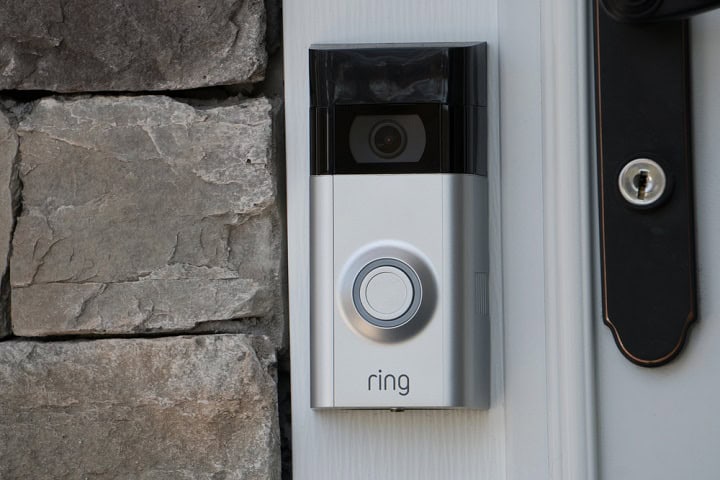
To connect a Blink doorbell to Alexa, the steps are very similar. After connecting your Blink and Alexa accounts, your doorbell should automatically show up. After the doorbell is linked, you can turn on announcements so Alexa will say something when someone presses the doorbell. In the Alexa app, open the doorbell device, look for Announcement or Doorbell Press settings, and turn it on. You can choose which Echo speakers will announce the doorbell press, and you can also use the doorbell with routines if you want Alexa to turn on lights or play a sound when the button is pressed.
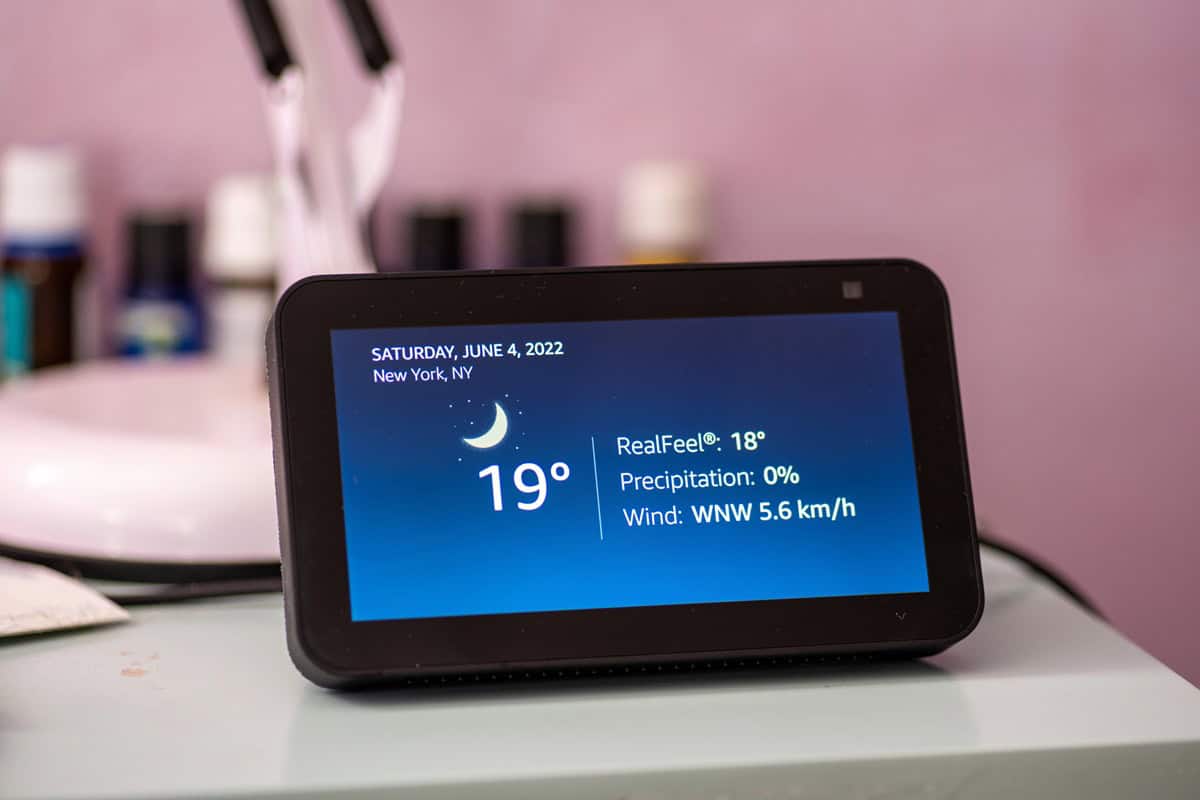
If you want a Blink camera on an Echo Show for live view, you do that through the Alexa app after the camera is linked. Once your Blink camera shows up under Devices, check that the name is easy to say, like “Front Door” or “Back Yard.” On the Echo Show you can say “Alexa, show the Front Door” to bring up a live view of that camera. You can also say “Alexa, stop” to close the view. If you prefer, you can pin the camera to the Echo Show home screen using the settings on the device, which lets you start the live view with a tap instead of a voice command.
Common Blink and Alexa Problems and Fixes
If you have trouble linking Blink to Alexa, start by checking that you are using the same Amazon account in both the Alexa app and the Blink app. If they are different, the link may fail. Make sure two step verification codes are entered correctly during setup and that you finish every step in the Blink SmartHome skill, including granting permission for camera access and motion alerts. If the link still fails, disable the Blink SmartHome skill in the Alexa app, close the app, then open it again and enable the skill from scratch. You can also log out and back in to both apps, confirm your phone has a stable internet connection, and restart your phone before trying the link again.
When Blink cameras or doorbells are not responding to Alexa voice commands, start with a basic check. Open the Blink app and see if the camera is online, armed, and streaming there. If it is not, fix that first by checking your Wi-Fi, moving the camera or sync module closer to the router, or restarting the sync module and your router. If the camera works fine in the Blink app but Alexa cannot reach it, say “Alexa, discover devices” or run device discovery in the Alexa app to refresh the connection. You can also remove the camera from the Alexa app, then add it again from the Devices tab. If that does not work, disable and re-enable the Blink SmartHome skill, then power cycle your Echo device by unplugging it for about 30 seconds and plugging it back in.
If you see video or sound problems from your Blink camera or doorbell on an Echo Show, first check the Blink app to see if the video and audio stream look normal there. If the video is choppy or slow, this may point to a Wi-Fi or bandwidth issue. Try moving your Echo Show and the Blink sync module or camera closer to the router, or reduce other heavy internet use during testing. For sound issues, open the Echo Show settings and confirm the volume is turned up and not muted, then check the Blink app to make sure microphone and speaker settings for the camera are on. You can also say “Alexa, restart” to reboot the Echo Show, or unplug it and plug it back in. If problems continue, remove the Blink camera from the Alexa app, add it again, and check that your Echo Show firmware, Alexa app, and Blink app are all updated to the latest versions.
In Summary
Blink and Alexa can work together if you have the right gear set up and take a few careful steps in both apps. You link your Blink account to the Blink SmartHome skill, add your cameras and doorbells as devices, and then you can use voice commands, routines, live view on Echo Show, and doorbell announcements. If something breaks along the way, most problems come down to account mix ups, Wi-Fi issues, or a skill link that needs to be reset. If you want hands free control of your Blink system, or you just want to hear and see what is going on without pulling out your phone, connecting Blink to Alexa can make that day to day use a bit easier once everything is set up and tested.